
Google Tag Manager UI Updates 2026
Google Tag Manager’s latest updates introduce a redesigned interface, new tools and fast on-site tagging capabilities via the Visual Event Builder. In this article we explore these changes and new features.
Google Tag Manager (GTM) has introduced a redesigned interface alongside several new tagging features. The update changes how users navigate containers, introduces a clearer view of Google tags and their destinations, adds filtering by tag type, and brings conversion setup directly onto the website through the new Visual Event Builder.
Some of these changes are primarily usability improvements. Others point towards a broader shift in how Google is bringing GTM, the Google tag, Google Analytics and Google Ads closer together. In this article, we walk through what has changed, how the new features work, and what they may mean for the direction of Google’s measurement ecosystem.
01. Simplified User Interface
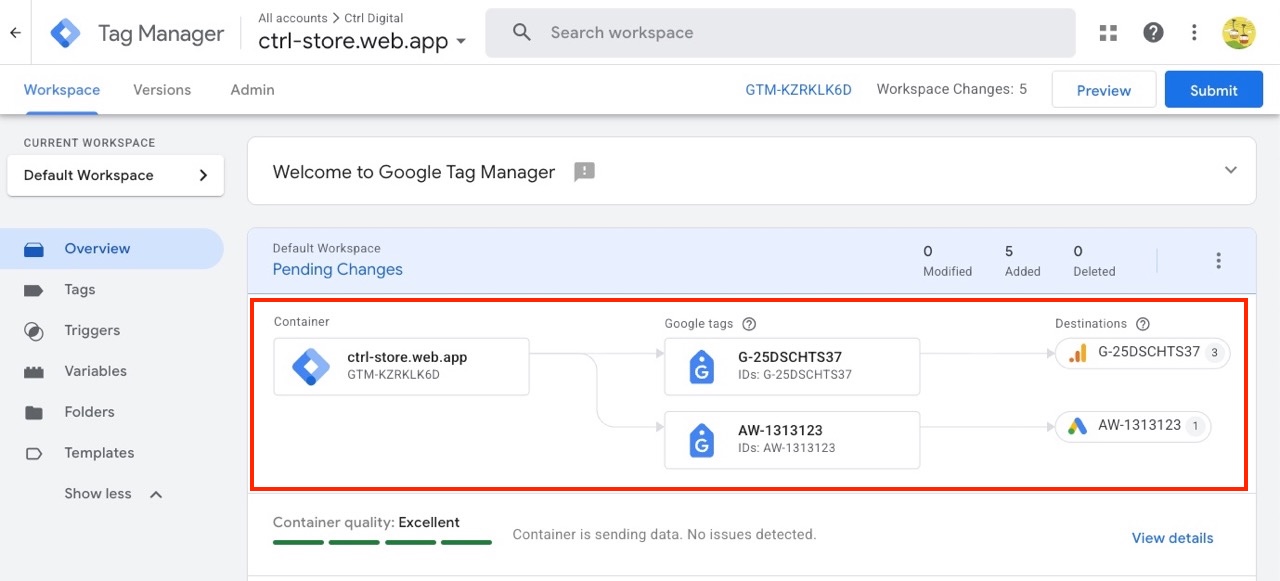
Google Tag Manager’s Overview page features a new layout designed to optimize container and product navigation. The change introduces dedicated sections that separate high-level container management from individual tagging assets.
In the left side menu, some options such as Triggers, Variables, Folders, Templates are now hidden behind a Show More option.
While largely a cosmetic change for now, it also reflects Google’s broader move towards a more unified tagging experience.
02. Overview of Google Tags and Destinations
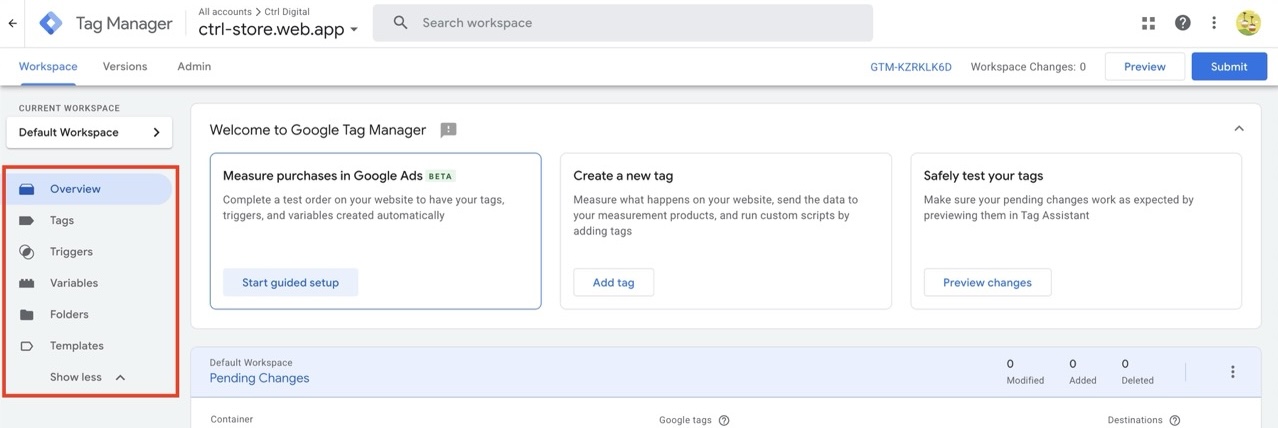
The new Overview tab displays the Google tags configured in your container and the destinations they send data to. In the example below, the same tagging setup sends data to Google Analytics and Google Ads. This provides a quick snapshot of how measurement data flows across Google products.
More importantly, the new view reflects a broader change in how Google is approaching tagging. Rather than treating Analytics and Ads as entirely separate implementations, Google is increasingly positioning the Google tag as a shared collection layer that can route data to multiple destinations. For teams managing several Google products, this makes the relationship between collection and destination configuration much more explicit.
Note that this feature currently only supports Google products and destinations.
03. Filter and Search by Tag Type
Finding specific tags in large containers is now easier with expanded filtering and search capabilities. Users can filter directly by Tag Type from the main search bar. Instead of scrolling through long lists or relying solely on naming conventions, you can select a tag type such as GA4 Event, Google Ads Conversion Tracking or Custom HTML to narrow down the tag list.
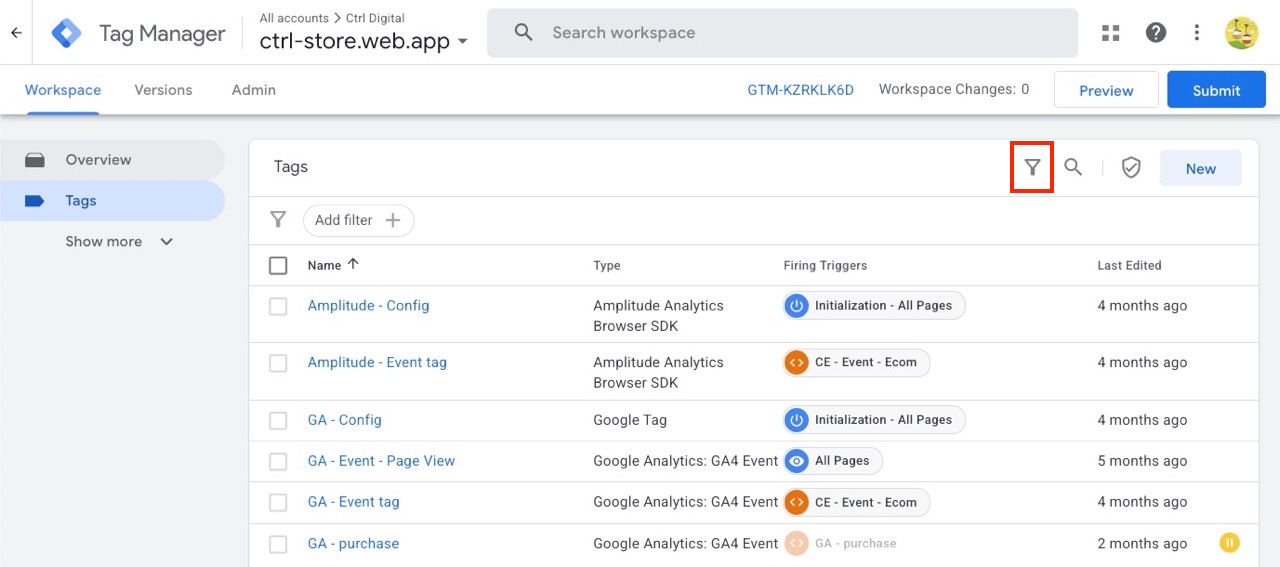
Click the symbol to open the list of tag types added in the container.
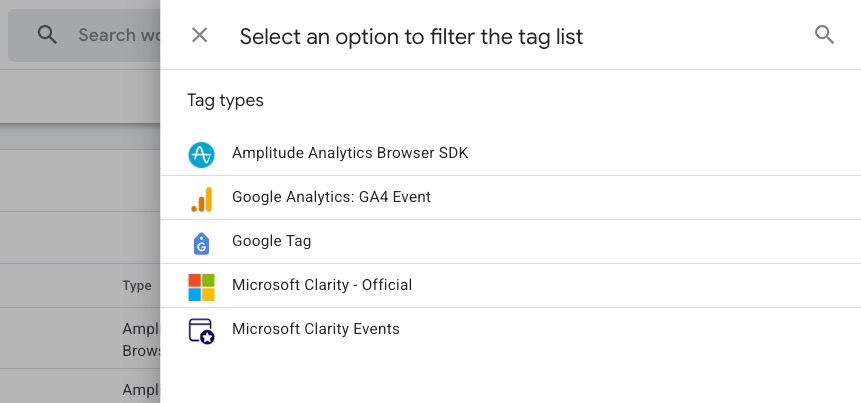
Select a Tag Type to filter the tag list.
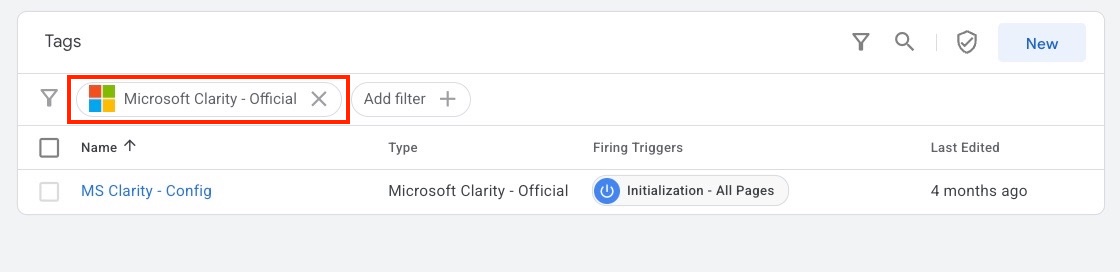
This can be particularly handy when managing or exploring a large container with many tags, allowing you to quickly narrow down the list without relying on tag naming conventions.
04. Workspaces Hidden by Default
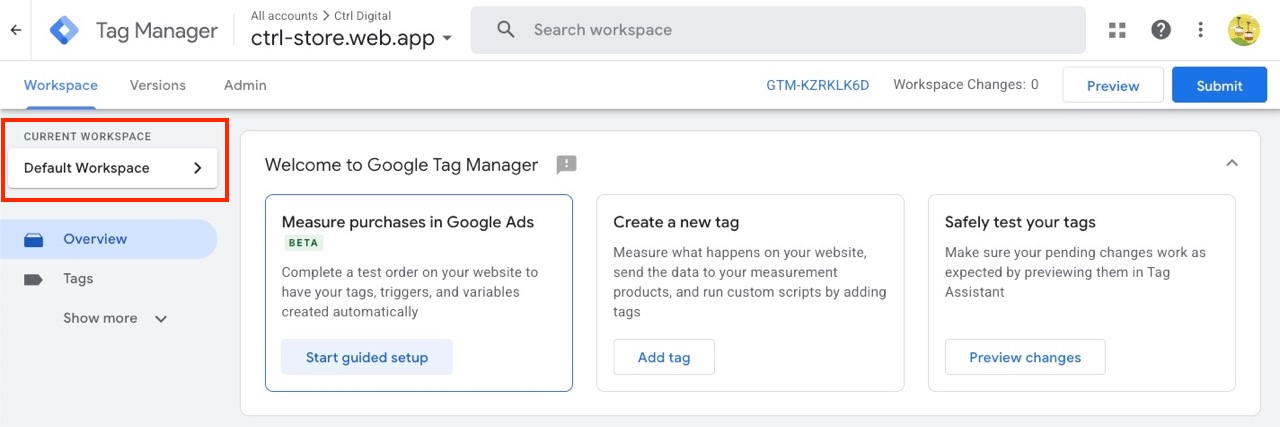
The Workspace switcher is now hidden by default when only one workspace exists. If your team relies on multiple workspaces or wants continuous visibility of the current workspace, you can manually restore the dropdown.
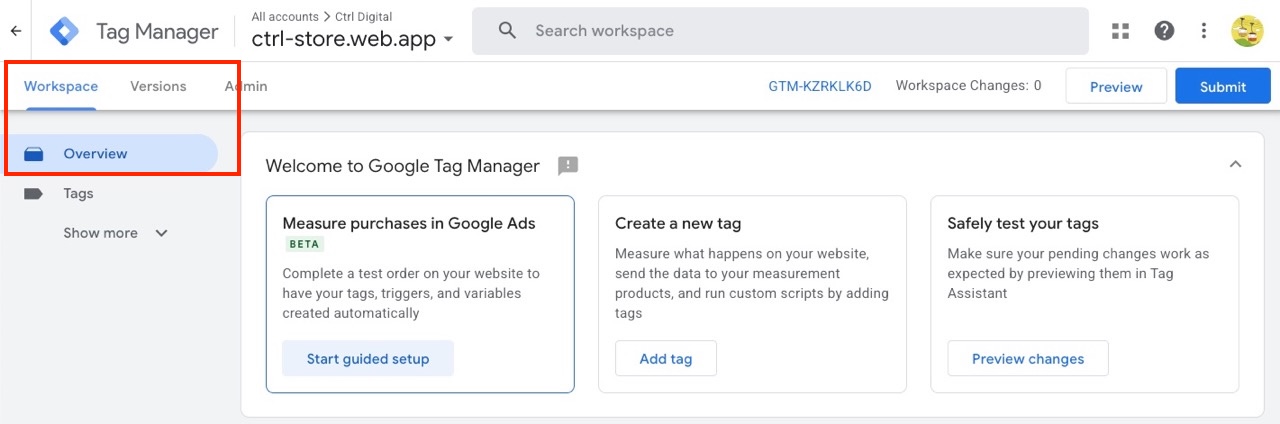
Restore the Workspace Switcher
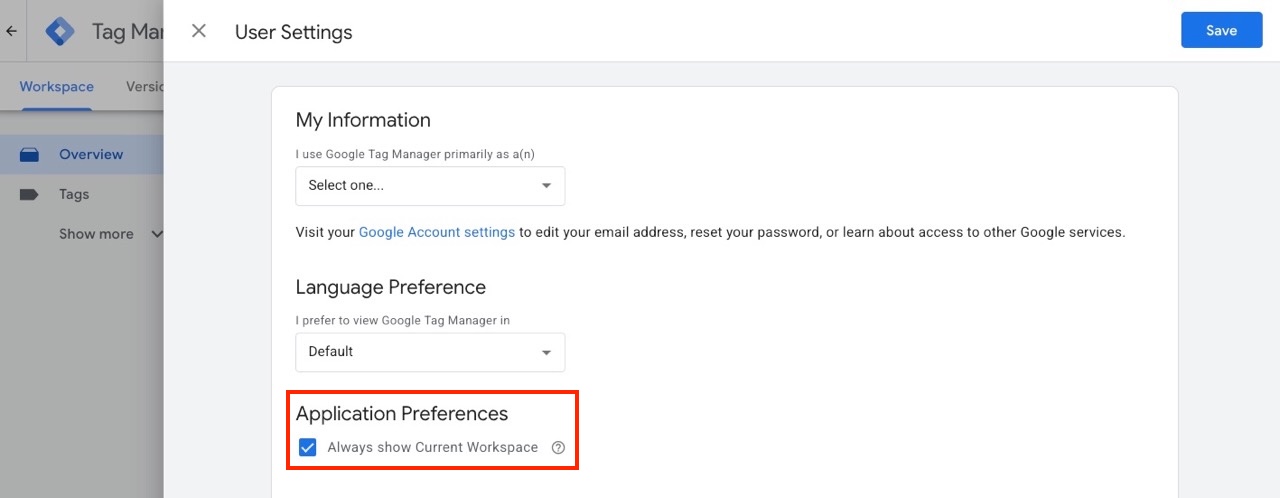
- Click the three vertical dots in the top right corner of the GTM interface, next to your profile picture.
- Click User Settings.
- Check the box for “Always show Current Workspace”.
- Save your preferences.
The workspace selector is now always visible on the left.
05. Visual Event Builder
The Visual Event Builder is an on-page setup feature within Google Tag Manager designed to simplify conversion and interaction tracking. Rather than manually writing custom code or building individual triggers, variables, and tags from scratch, users can navigate their live website visually, click on target elements (such as CTA buttons or transaction values), and let GTM automatically generate the required configuration behind the scenes.
While advanced ecommerce architectures still benefit from standard dataLayer implementations, the Visual Event Builder offers a fast alternative for basic setups.
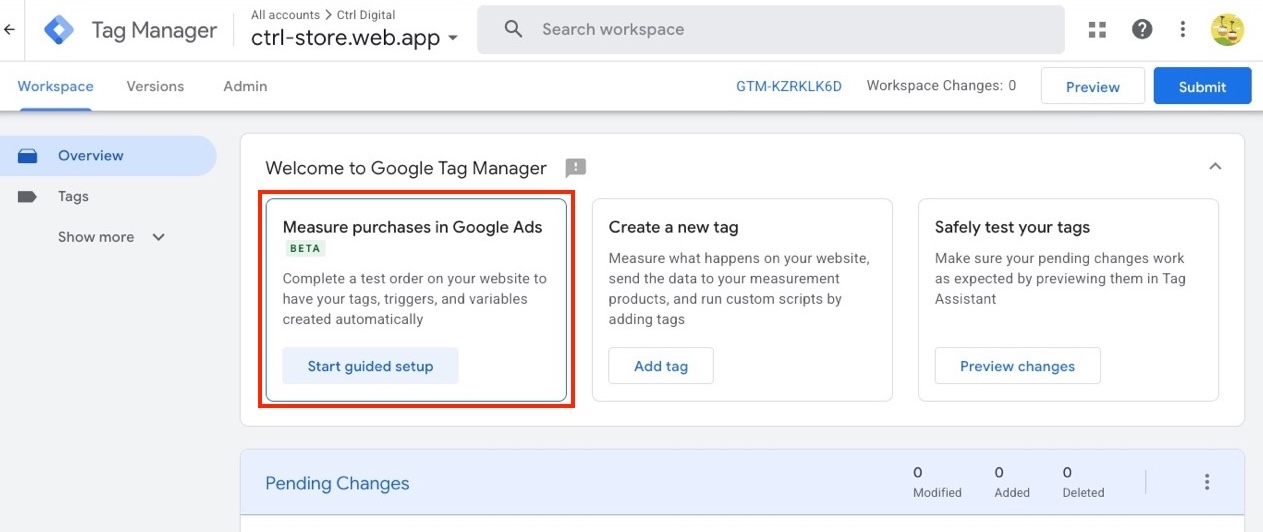
To get started, click on the Start guided setup.
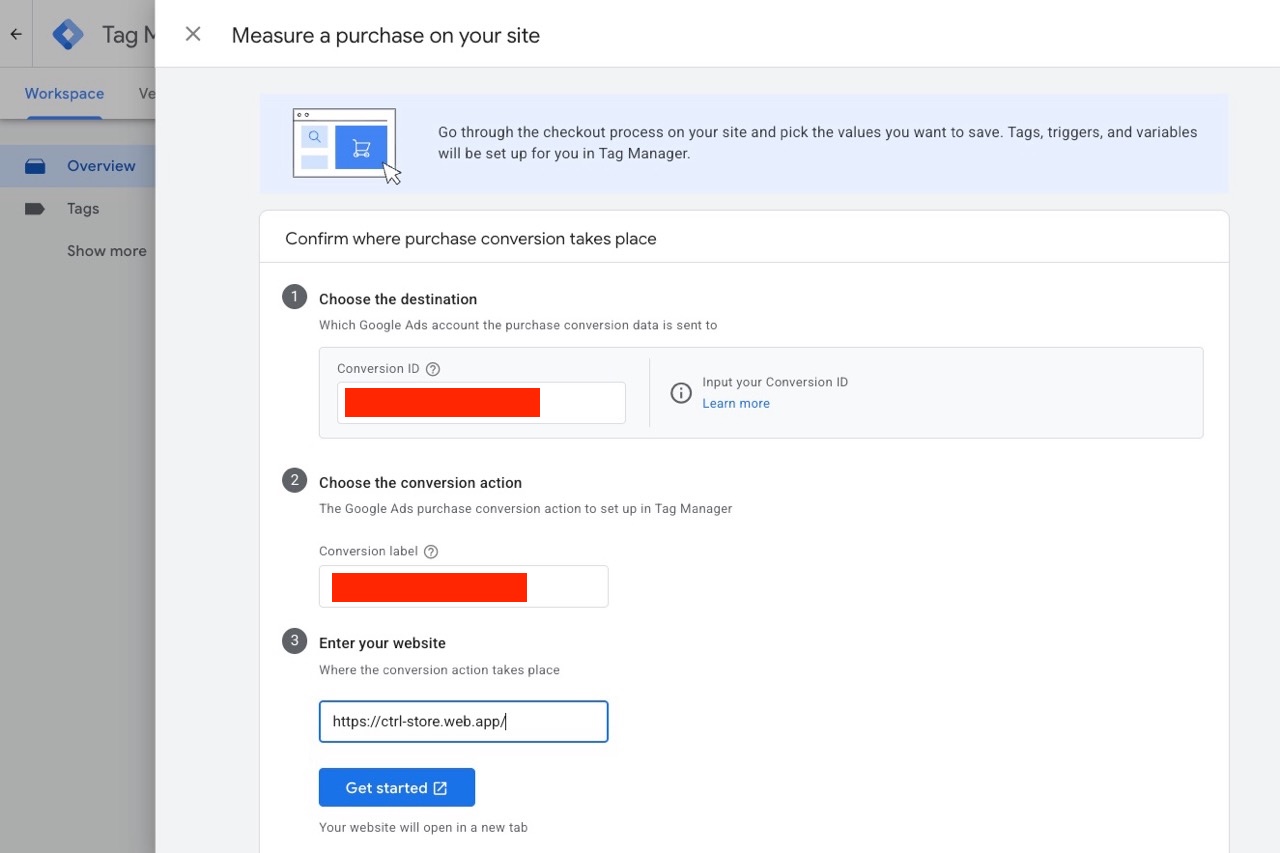
Start by entering the Conversion ID and Conversion Label from Google Ads. Then enter your site URL and click Get Started.
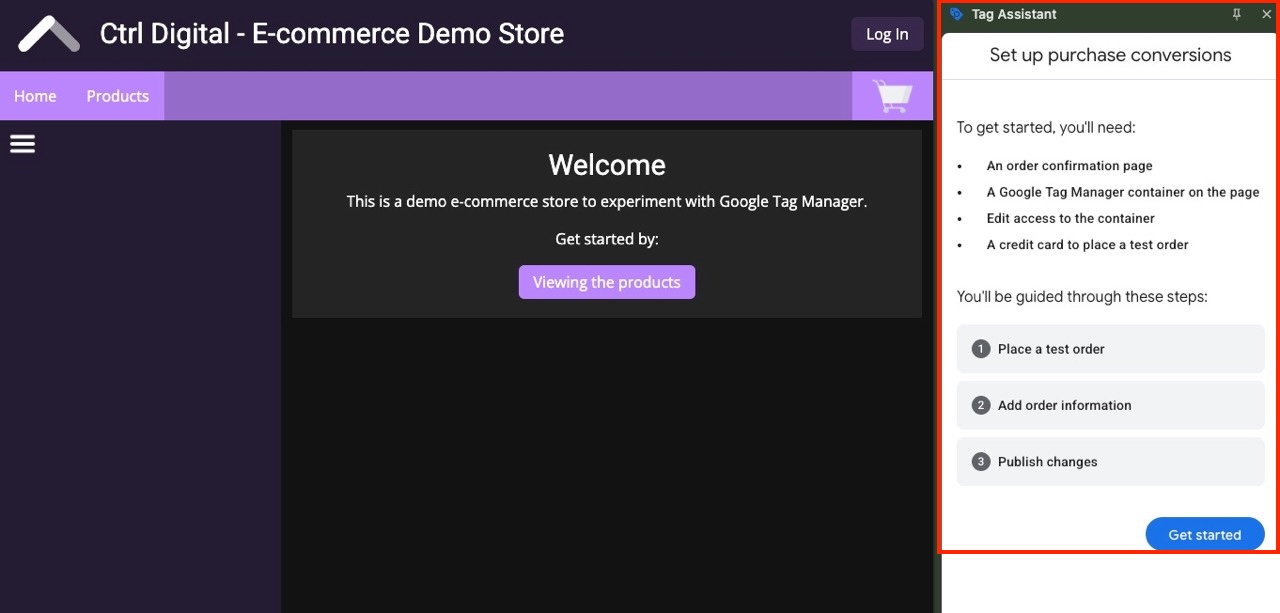
Your site will open in a new tab with the Tag Assistant panel to the right.
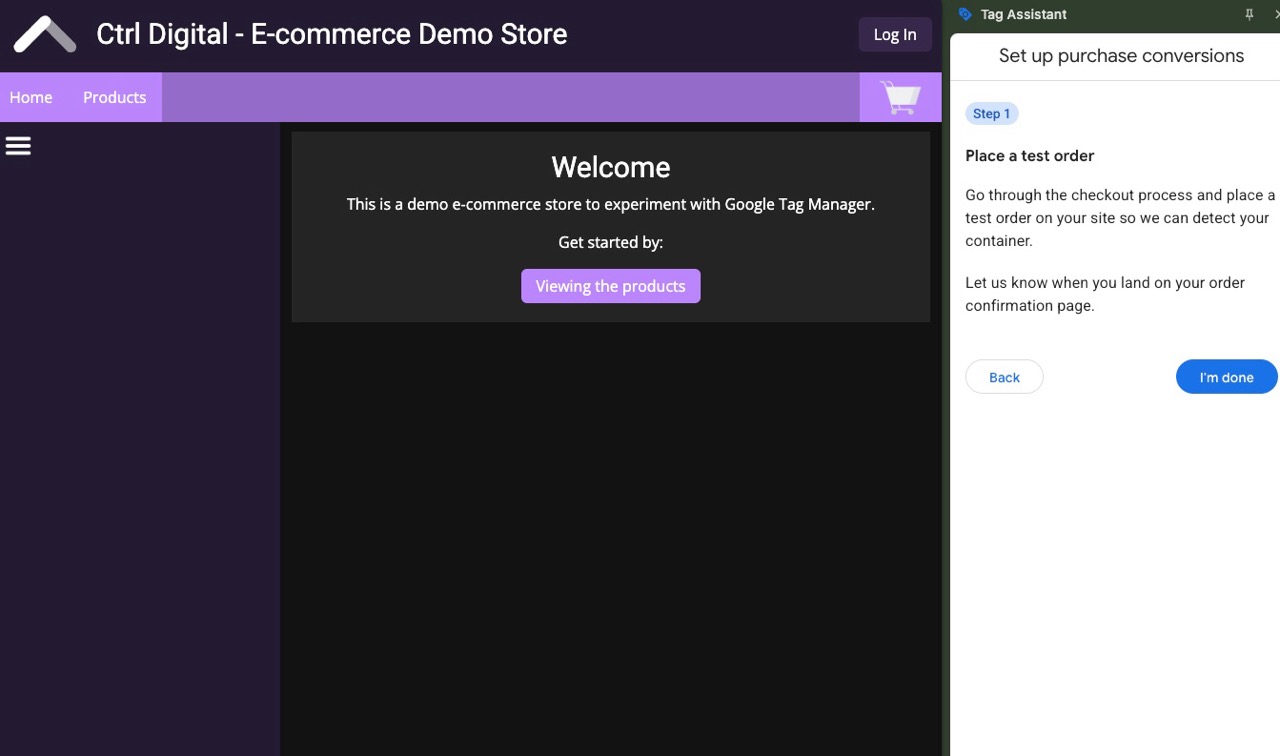
Next, you will be prompted to navigate to the conversion Thank You page, for example by completing a purchase or submitting a lead form.
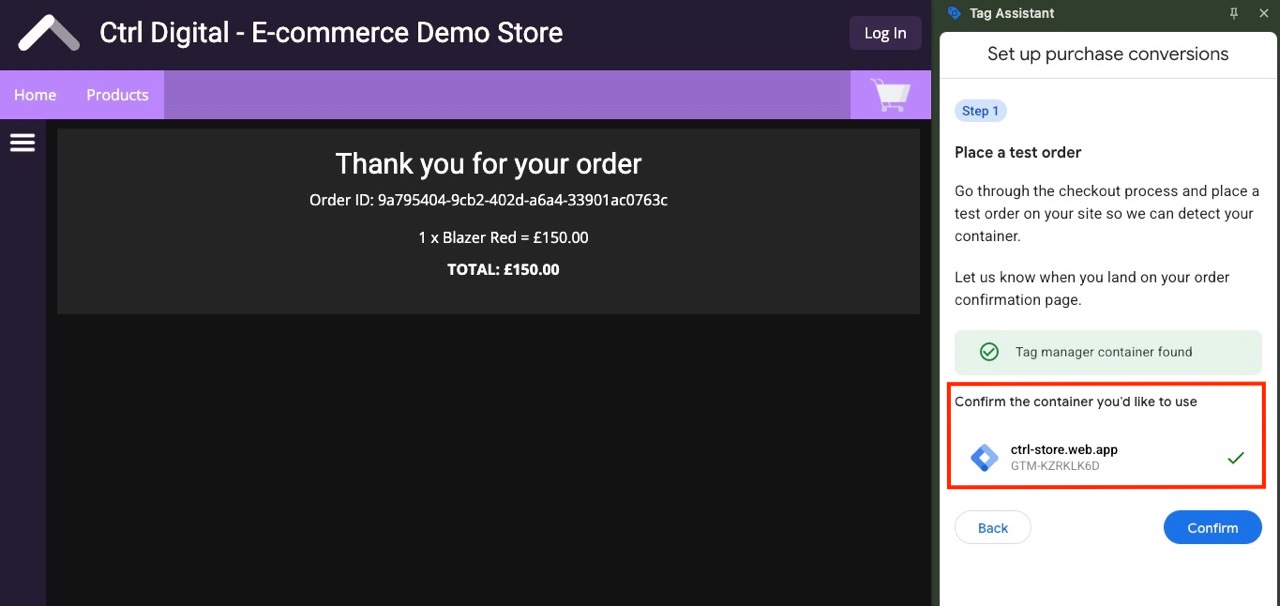
Once you have reached the Thank You page, confirm which GTM container to use. For most sites, there will only be one. Click Confirm to continue.
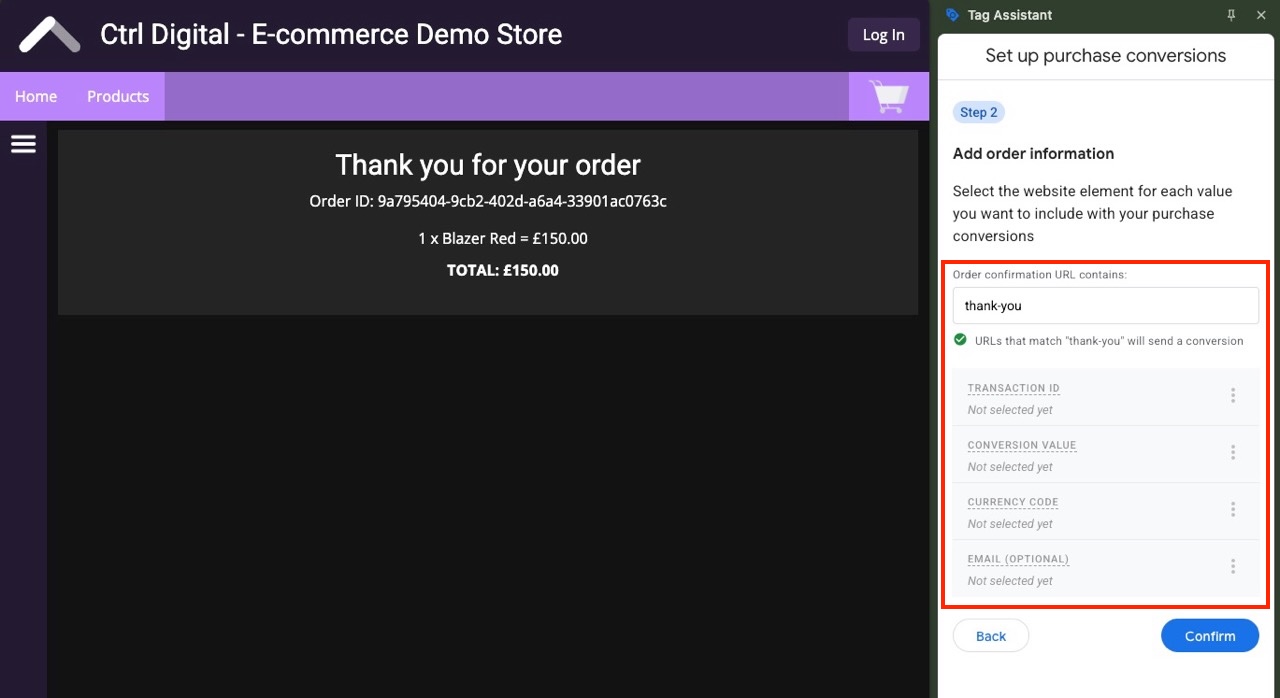
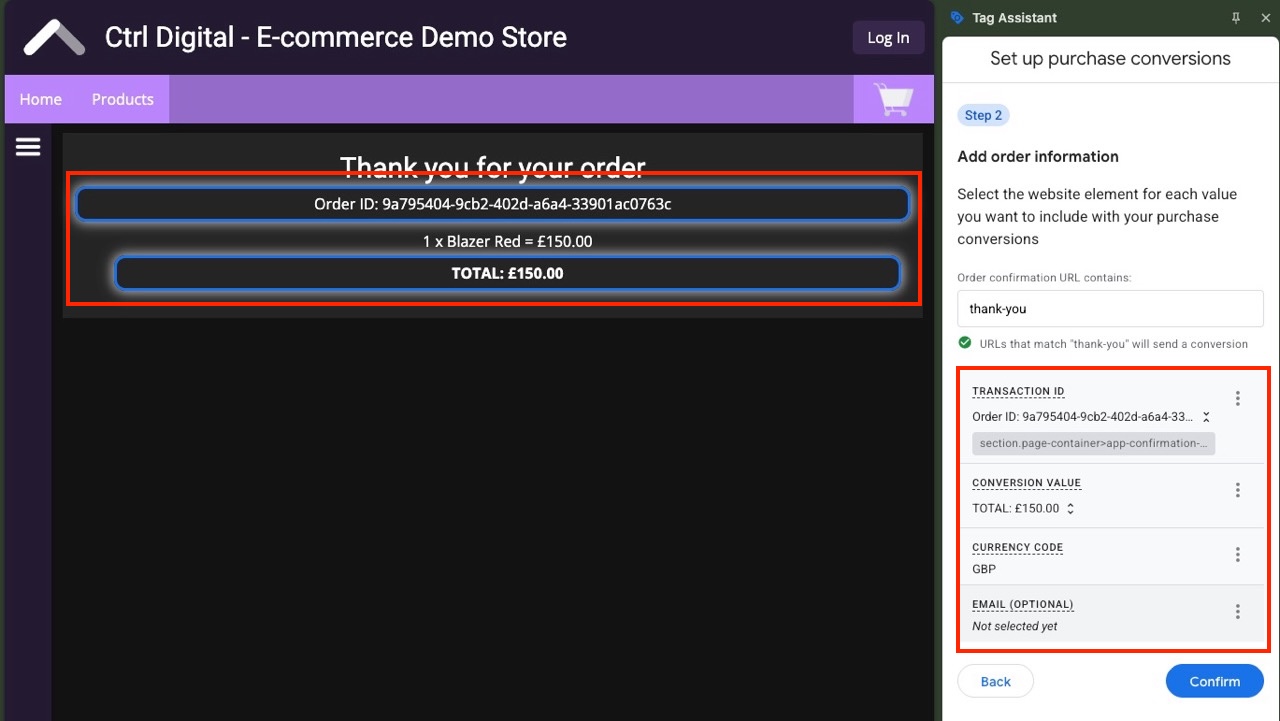
Next, map the necessary fields using data from your site. Click Transaction ID on the right, then select the corresponding Order ID visible on the Thank You page.
Repeat this step for the other fields, choose a currency, and optionally map Email if you plan to enable Enhanced Conversions in Google Ads.
When you are done, click Confirm.
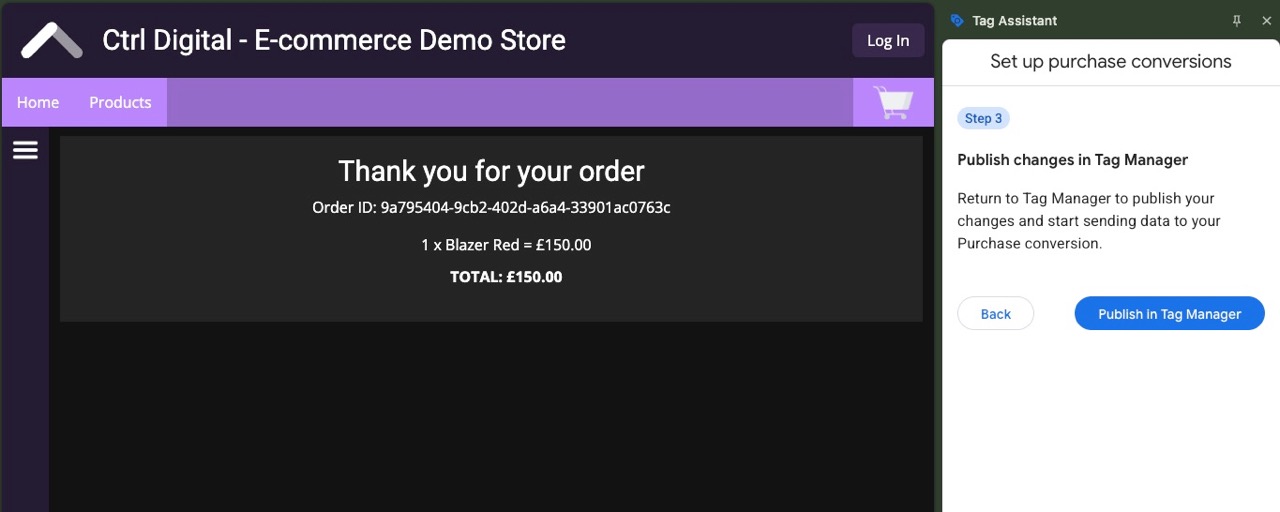
Finally, click Publish to return to the main GTM interface.
The new tags and variables will now be created for you to review before publishing.
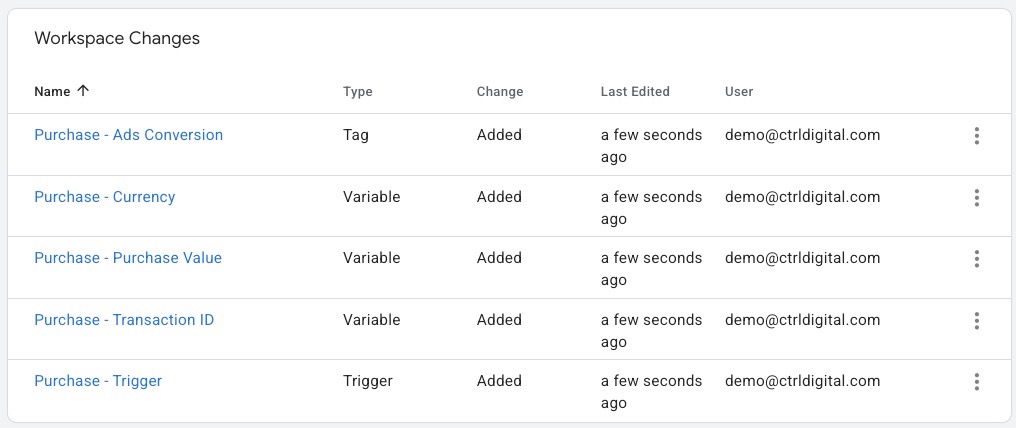
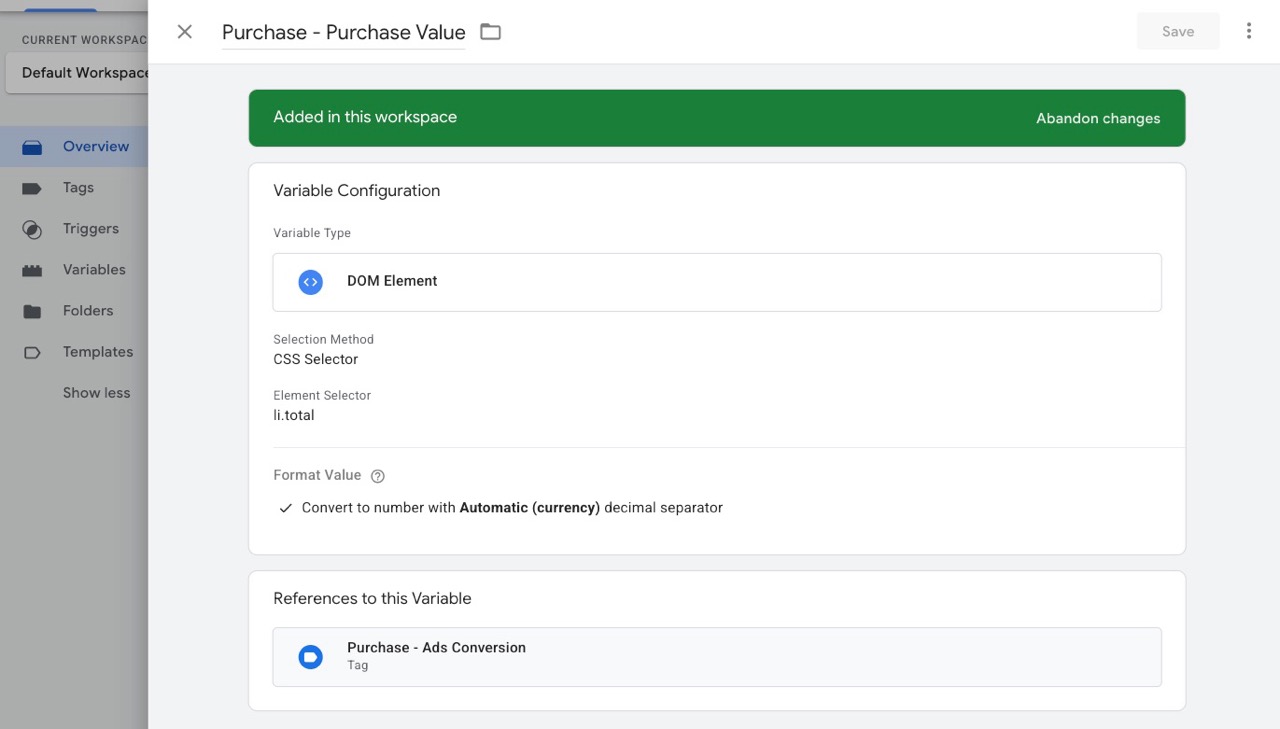
If any of the generated variables do not provide reliable data, or you prefer to use the dataLayer for certain values, you can adjust the setup before publishing.
Use Cases and Limitations
The Visual Event Builder lowers the technical barrier to implementing conversion tracking. For simple websites and straightforward conversions, being able to visually select elements and extract values directly from the page could make basic implementations considerably faster.
The trade-off is that it moves tracking logic closer to the presentation layer. Page elements, CSS selectors and front-end structures tend to change more frequently than a deliberately designed dataLayer, making this approach inherently more fragile for business-critical measurement.
We therefore see the Visual Event Builder as a useful complement rather than a replacement for a structured dataLayer. It could be particularly valuable for quick implementations, prototyping, or filling measurement gaps where development resources are limited. For mature or complex setups, however, a well-defined and governed dataLayer should remain the foundation.
06. Where Google Tag Manager Is Heading
Taken individually, many of these updates may look like interface improvements. Taken together, however, they point towards a broader shift in Google’s approach to tagging and measurement.
The boundaries between Google Tag Manager, the Google tag, Google Analytics and Google Ads are becoming less distinct. Rather than configuring separate tags for individual products, Google is increasingly moving towards a shared measurement layer where data is collected once, configured centrally and routed to different destinations. At the same time, features such as the Visual Event Builder are abstracting away some of the technical implementation work altogether.
This should make basic measurement considerably more accessible. But it doesn’t necessarily make measurement architecture less important. For larger organizations, the challenge increasingly shifts from simply getting tags to fire towards defining reliable data, maintaining governance and ensuring that the same measurement foundation can support analytics, advertising and other downstream use cases.
The new GTM interface therefore feels less like an isolated redesign and more like another step towards a more unified Google measurement ecosystem. It will be interesting to see how far Google takes that convergence.