
Generative AI Functions in BigQuery to Analyze Qualitative Data

Using Generative AI Functions in BigQuery to Analyze Qualitative Data
AI is becoming a natural part of data work. BigQuery now includes native Generative AI functions that let you use Vertex AI and Gemini directly inside SQL. This means that you can analyze text and images, classify content, and compare similarity without leaving your database. It helps you work with qualitative data in a simple way. You write SQL and BigQuery sends your request to Vertex AI, then returns the result.
In this article you will learn how the functions work with some examples and how to set everything up inside BigQuery.
Setting Up the Vertex AI Connection in BigQuery
Before using the AI functions, you first need to set up a connection from BigQuery to Vertex AI.
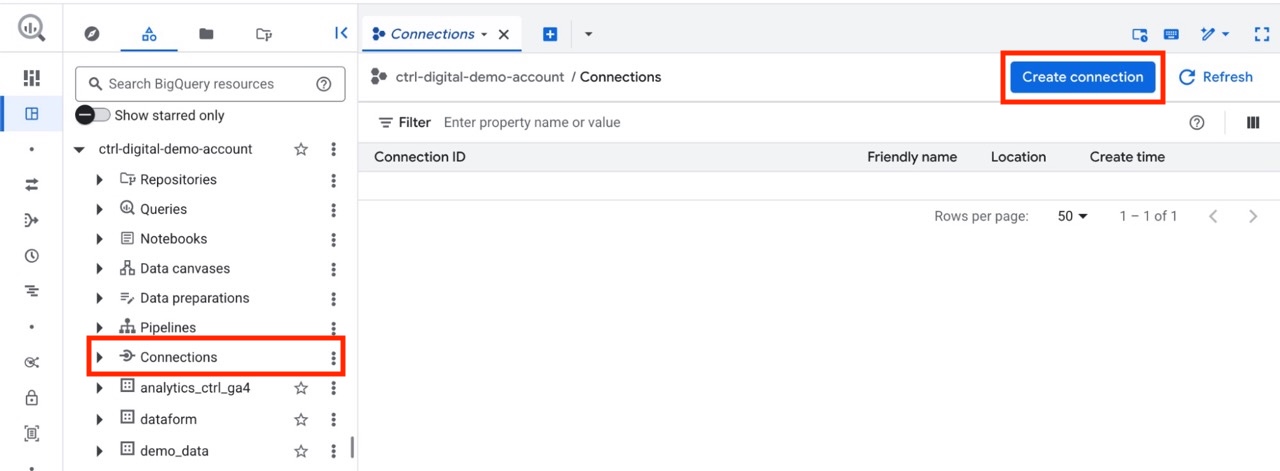
Open BigQuery Studio in the Google Cloud console, navigate to the Connections page.
Click Create Connection.
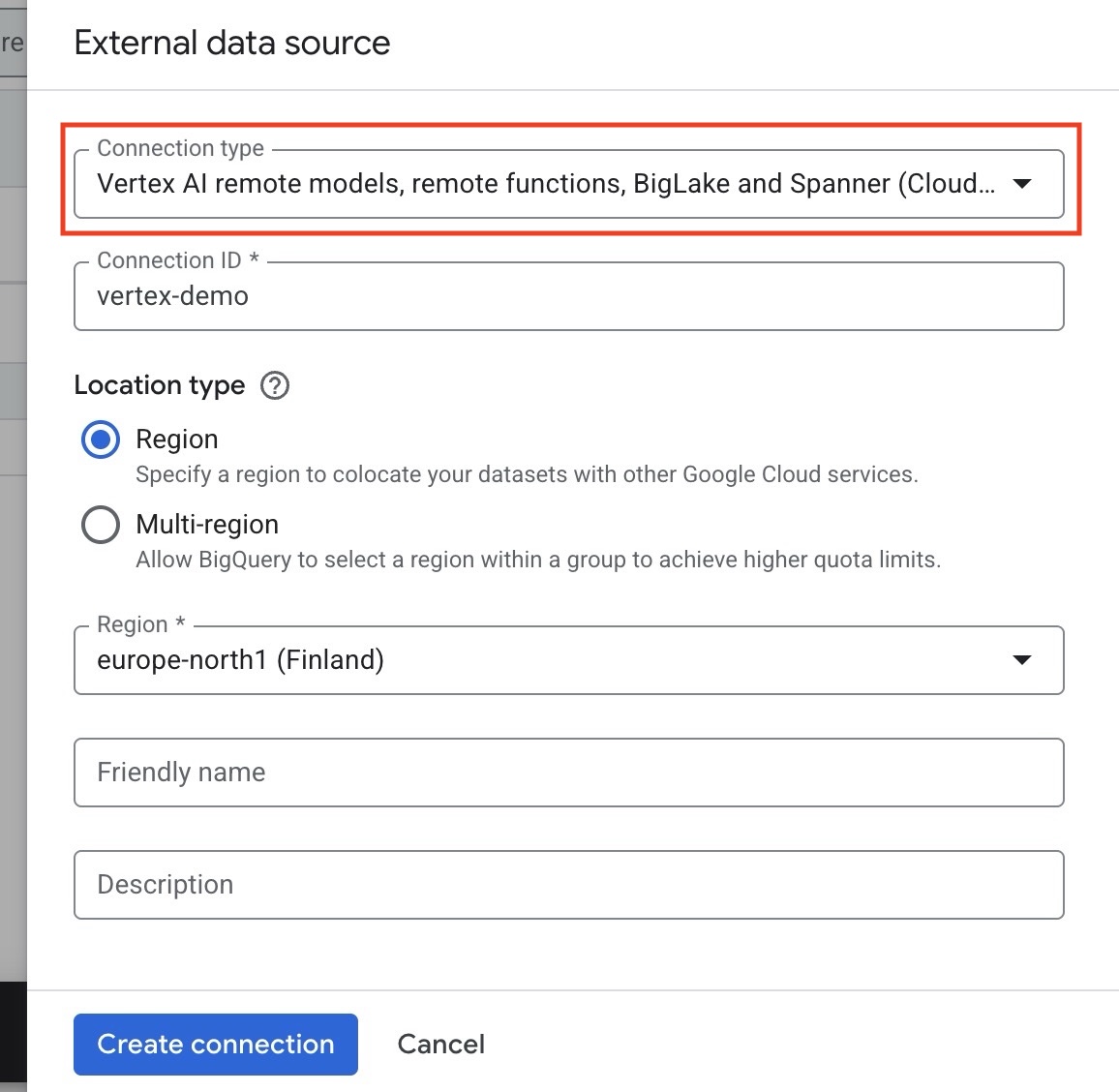
Under Connection type, choose Vertex AI remote models.
Choose a region. It is easiest to use the same region you already use in BigQuery for storing and querying your data.
Optional, give it a friendly name and a description.
Click Create connection.
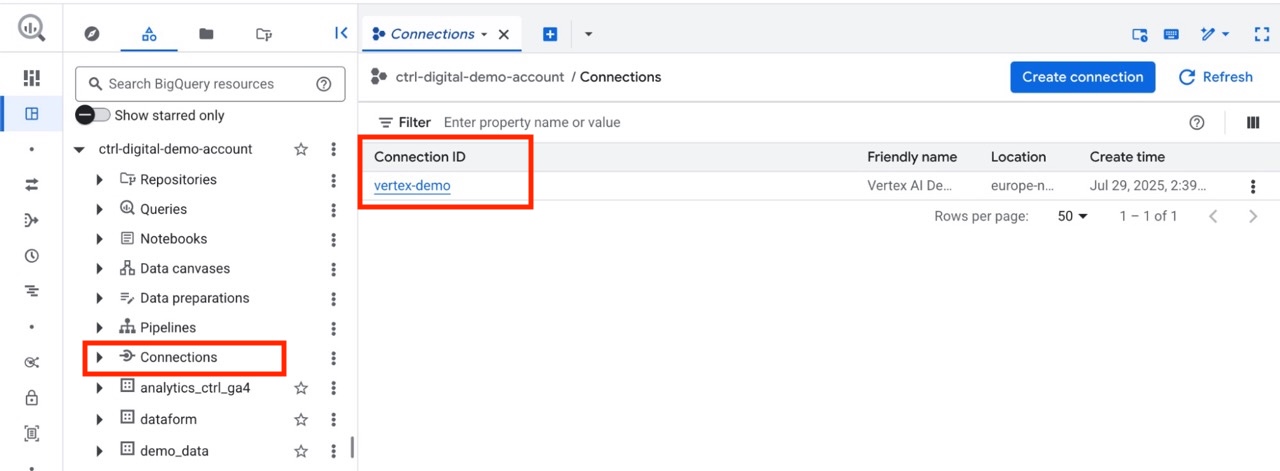
You now have a connection to Vertex AI. The next step is to give the connections service account the right permissions.
Set Permissions for Vertex AI in BigQuery
Click on the newly created Connections name, in our example “vertex-demo”.
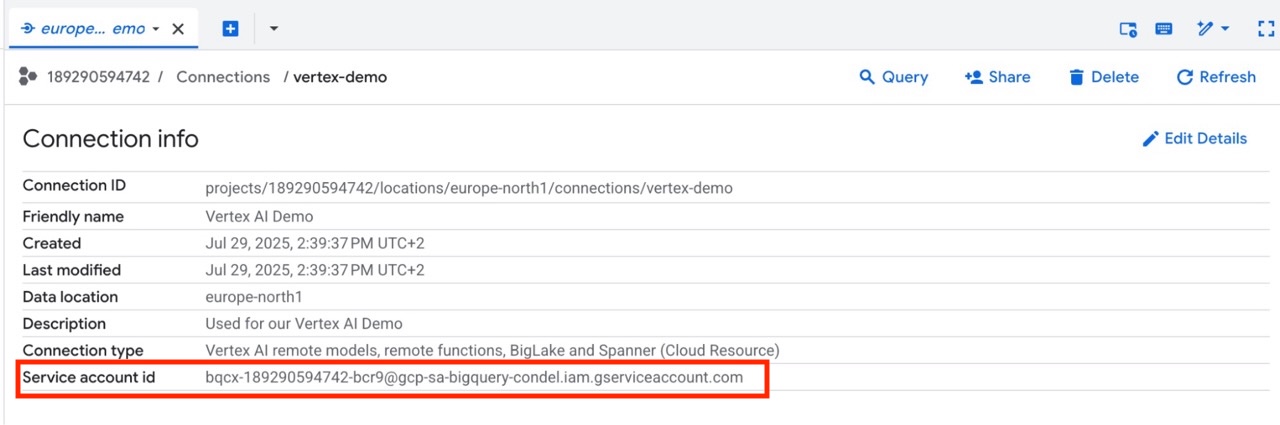
Here you can see details for your connection.
Copy your Service Account ID, this is the service account used to access Vertex AI.
Navigate to IAM in Google Cloud.
Click Grant access.
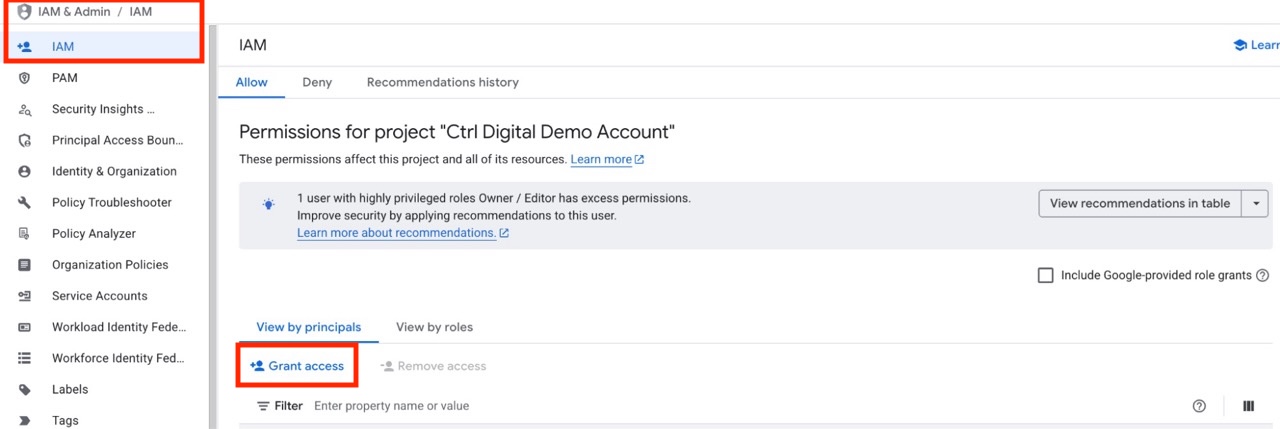
Paste your Service Account ID in New principals.
Select Vertex AI User and BigQuery Job User as new roles.
Click Save and verify.
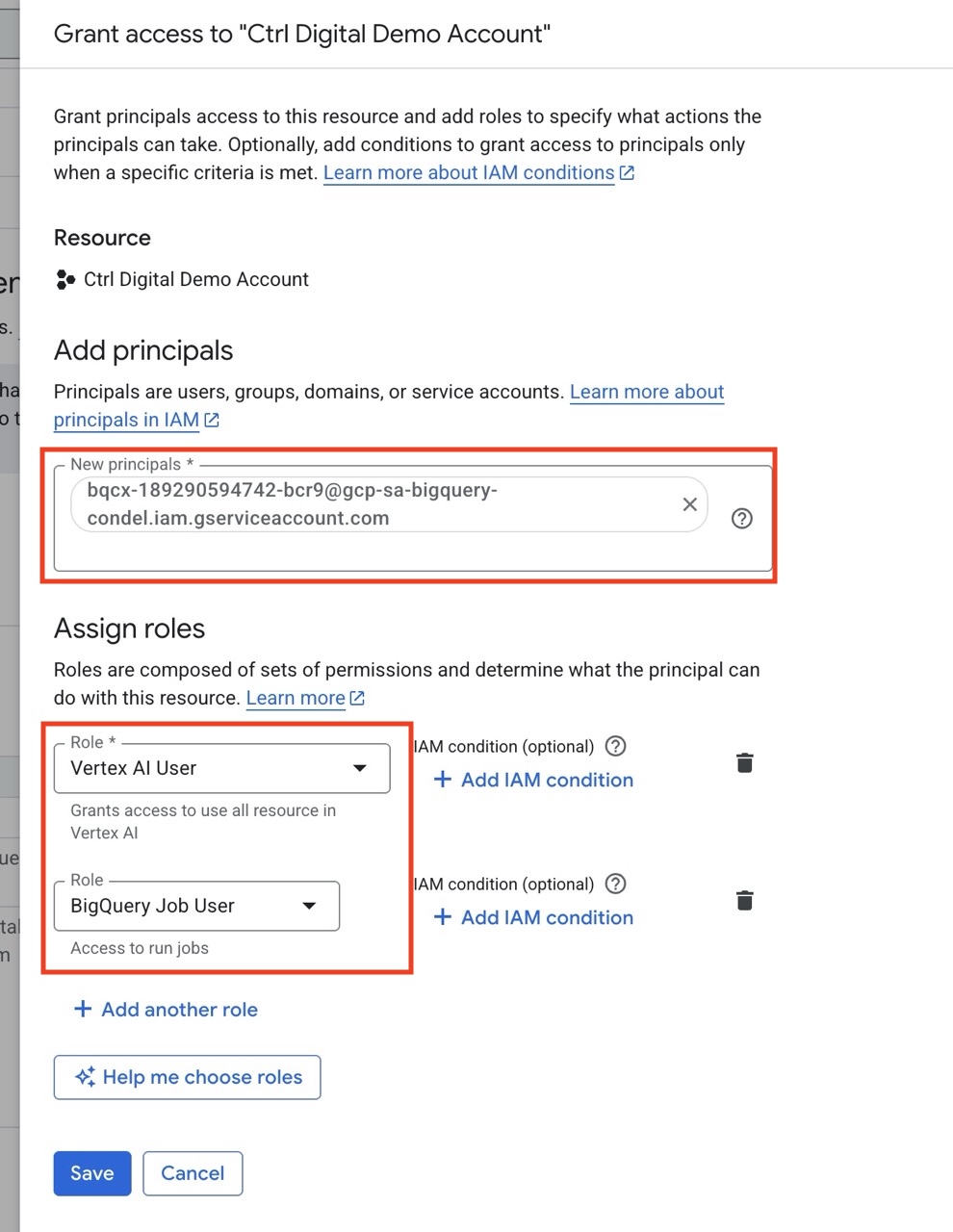
Your connection to Vertex AI is now ready to use!
Structure of the Generative AI Functions in BigQuery
No matter which AI function you choose, a few parameters stay the same.
Prompt: A free-text prompt with the instruction or question you want answered.
Endpoint: The model in Vertex AI you want to use. You can leave this empty, and Vertex AI will choose a suitable model for you.
Connection_id: The connection we created earlier. Write it in the format europe-north1.vertex-demo.
Output_schema: Some functions let you set an output schema, but not all. This makes sure the response follows a specific structure.
How a simple prompt with the AI.GENERATE can look:
SELECT
AI.GENERATE (('What is the capital of England?'),
connection_id => 'europe-north1.vertex-demo',
endpoint => 'gemini-2.0-flash',
output_schema => 'result STRING')
as prompt_response
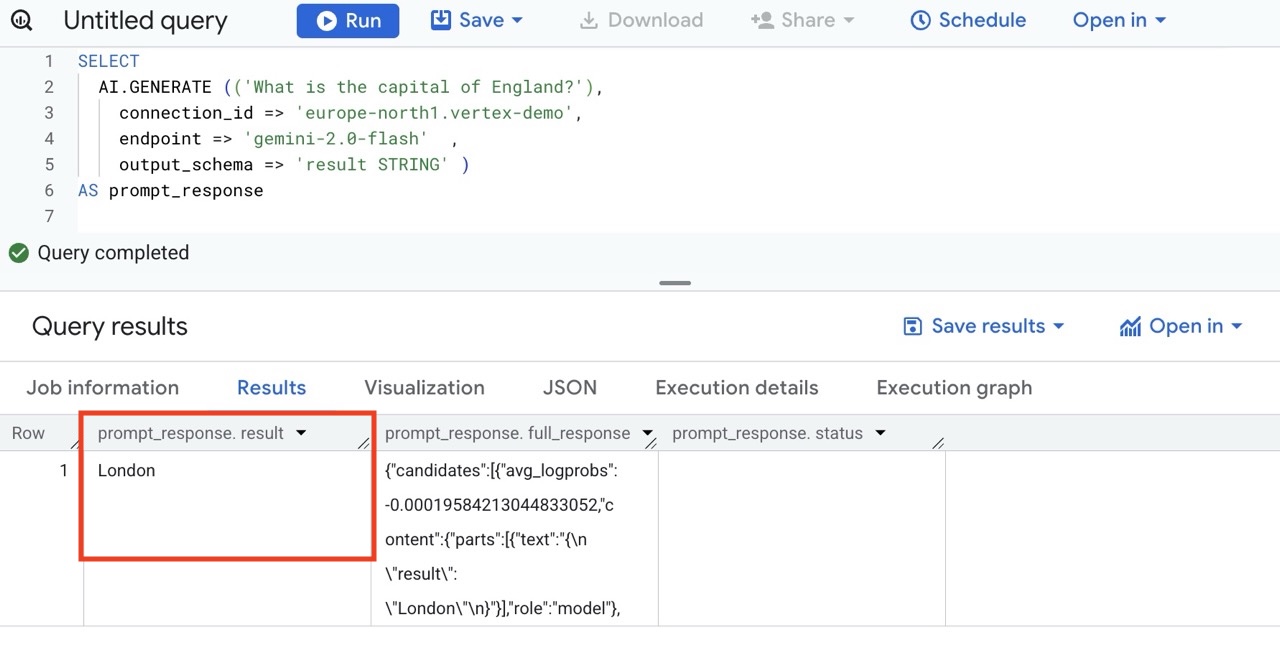
In the example above we use our connection, named vertex-demo, in the region europe-north1.
We choose to use the gemini-2.0-flash model, but we could leave this out and let Vertex AI choose a suitable model.
We also set an output_schema to ensure that the output will be a column named result of the type STRING
Now when we have a connection and understand the basics, let´s try a few different AI functions!
There are many to choose from, and we will highlight a few and their potential use cases. To see the full list, go to Generative AI functions in BigQuery.
AI.GENERATE()
Lets look at one of the available functions, AI.GENERATE sends a prompt to an LLM model and returns a generated response. You can use it to summarize text, rewrite content, extract insights, or create structured output. AI.GENERATE is the most flexible of the AI functions.
SQL Example of AI.GENERATE()
In this example we have a table with custom reviews, we will use AI.GENERATE to analyse what the customers sentiment is.
SELECT
AI.GENERATE (('Is this review Positive, Negative or Neutral: ', review, '? The result should only be one of those three words'),
connection_id => 'europe-north1.vertex-demo',
endpoint => 'gemini-2.0-flash' ,
output_schema => 'result STRING' )
AS response
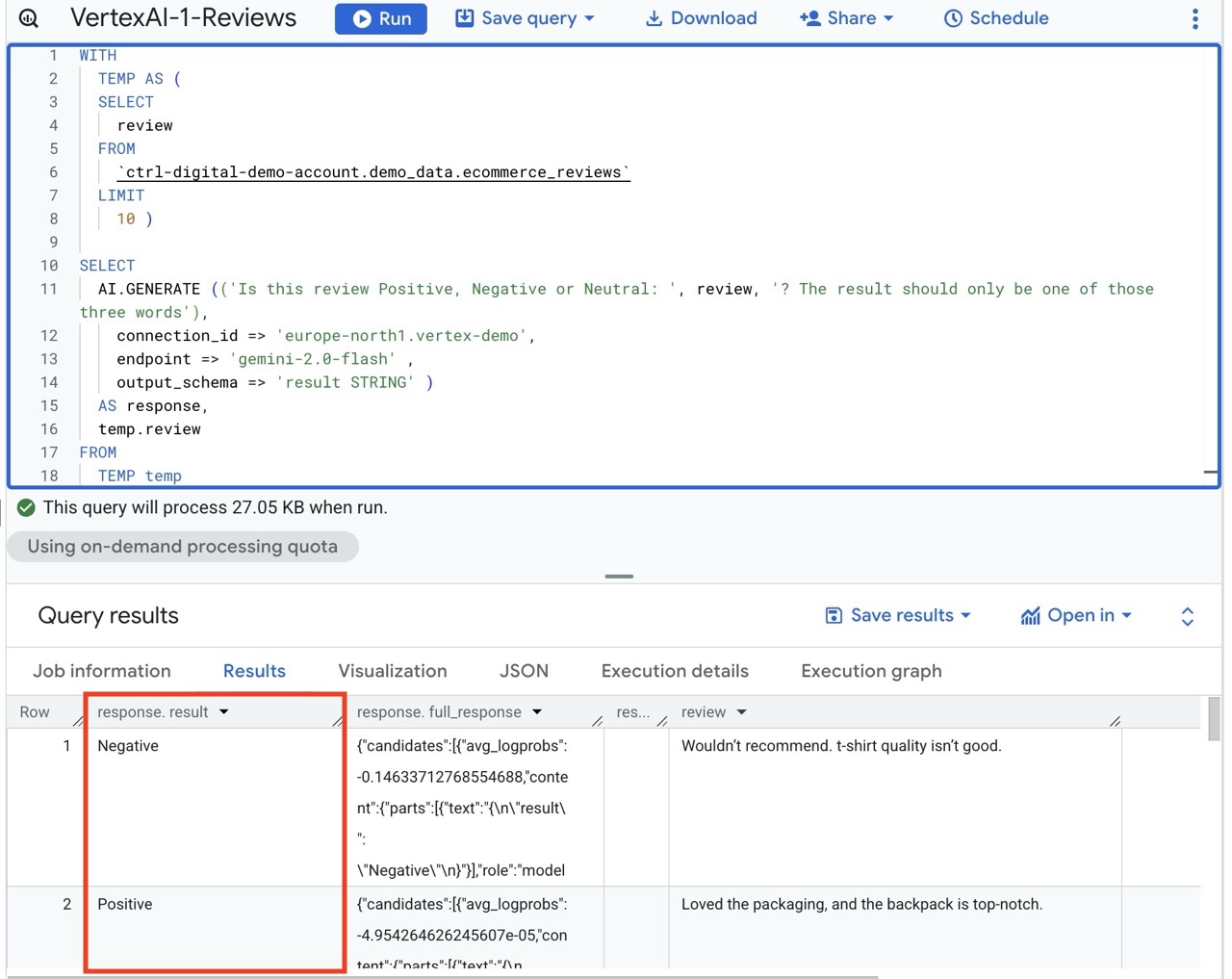
Use Cases for AI.GENERATE()
- Extracting key points from survey answers.
- Summaries of long customer comments.
- Creating short descriptions for product reviews.
- Turning messy text into structured insights.
AI.GENERATE() and Image Analysis
AI.GENERATE can also be used to analyze images and other non-text media.
One example is giving the function an image and letting it identify the content or its attributes.
Accessing a Google Cloud Storage Object from BigQuery
In this example we will upload some images to Google Cloud Storage, which is a file server in GCP. We will then supply the AI function with a URL to the image object so it can access and analyse it.
We start by creating a Google Cloud Storage bucket and name it ctrl-demo-files.
Next we upload some images that we want to analyse.
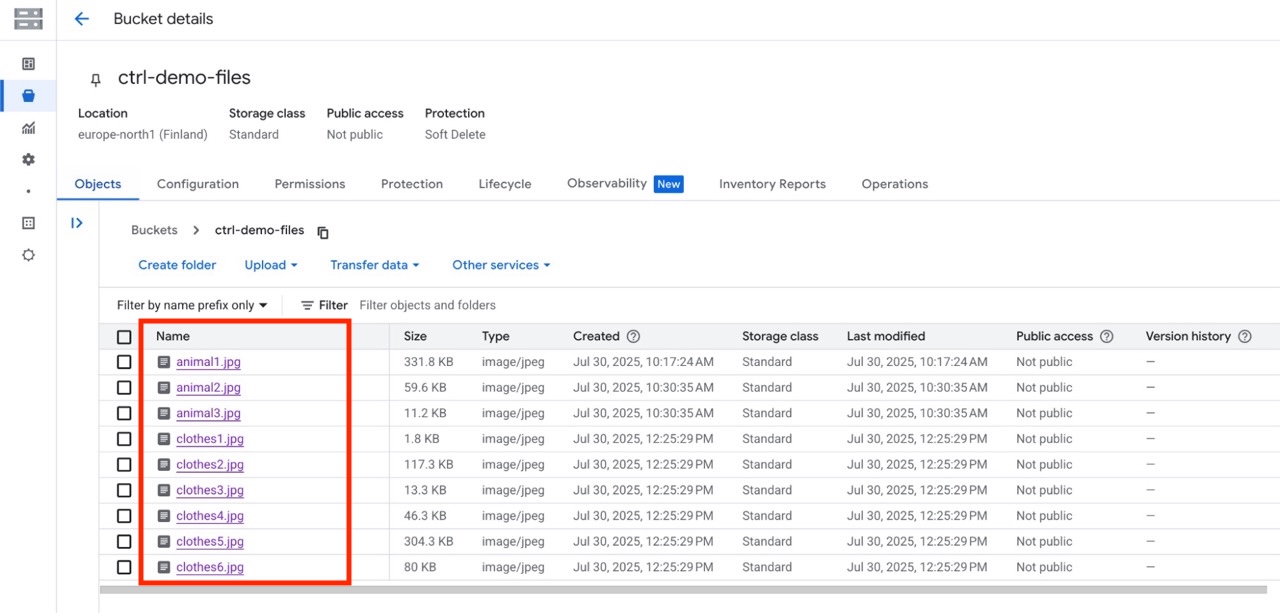
We set the Public Access to Not public, since we don’t want anyone to be able to access our files.
Give Vertex AI Access to the Cloud Storage Bucket
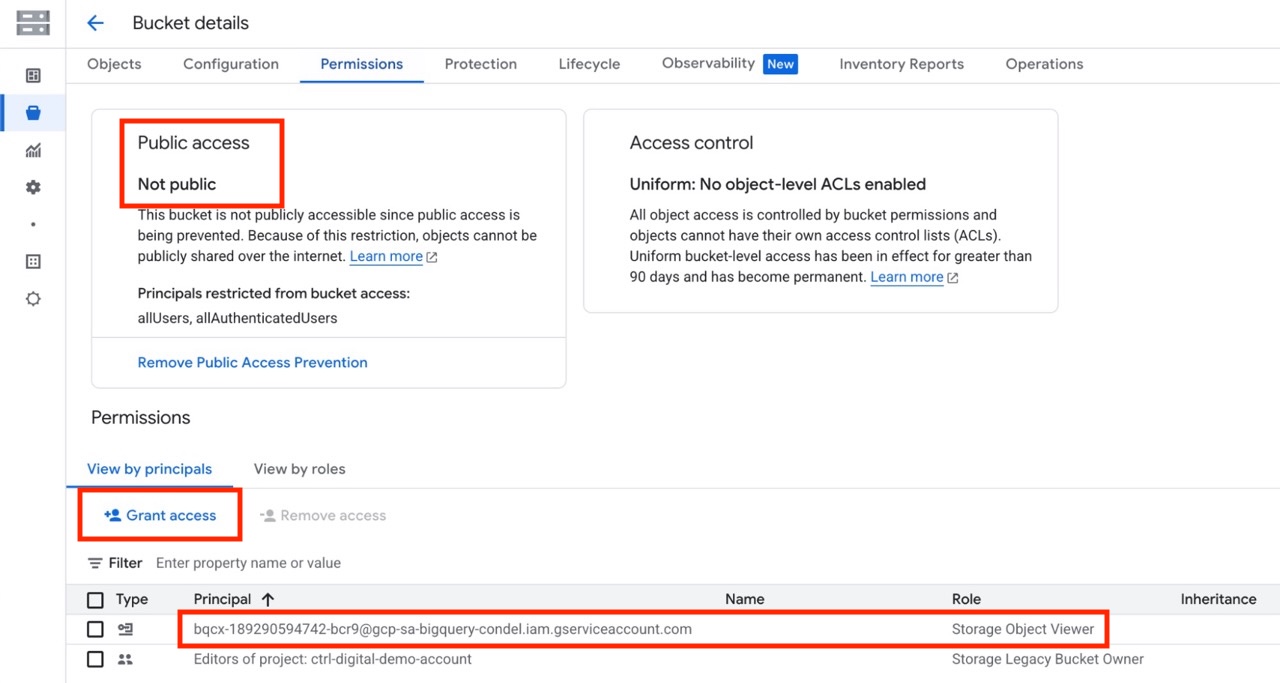
Next we give our Vertex AI Service Account ID access to the bucket.
In our storage bucket, under Permissions click Grant access, paste the Service Account ID we used earlier and give the permission Storage Object Viewer.
SQL Example of Accessing a Google Cloud Storage Bucket Item
We will use the functions MAKE_REF(), FETCH_METADATA(), GET_ACCESS_URL()
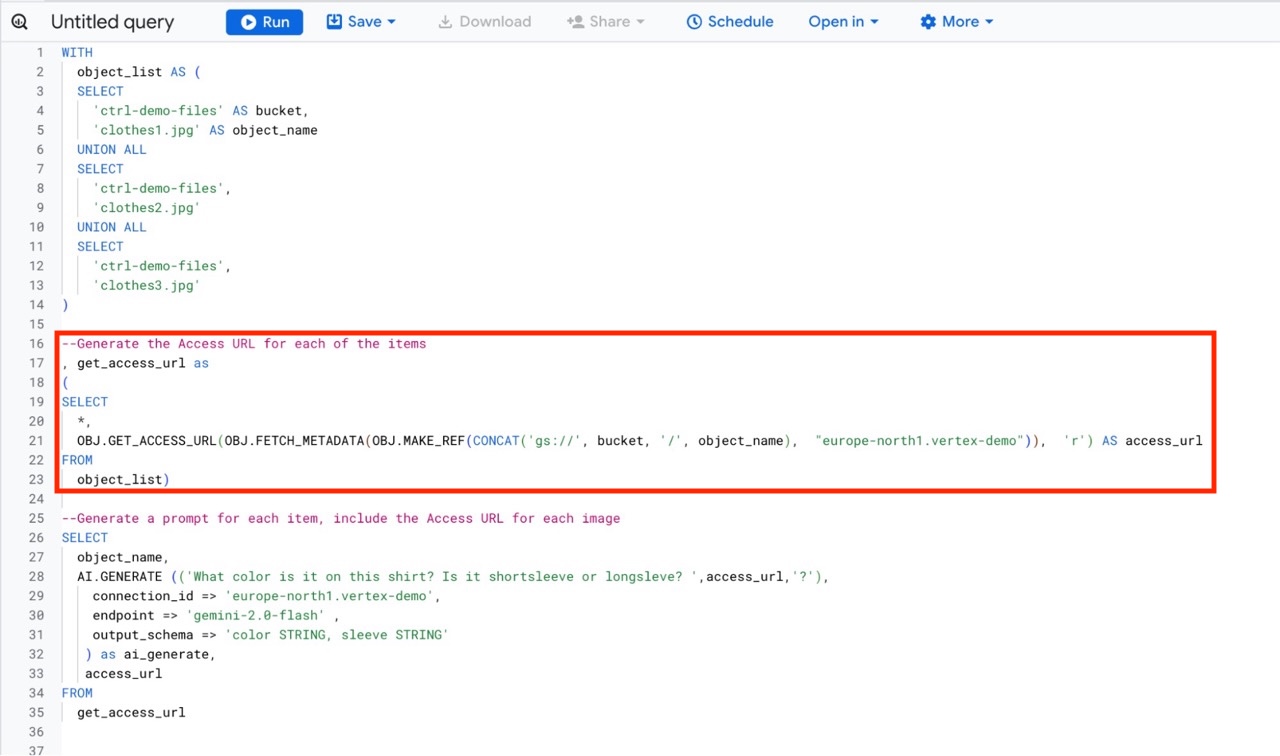
OBJ.MAKE_REF(…) creates a reference to a specific object in Google Cloud Storage. The path is built using the bucket name and the object name. The second argument tells BigQuery which connection or service to use.
OBJ.FETCH_METADATA(…) reads information about the file. For example size, type or other metadata stored for the object.
OBJ.GET_ACCESS_URL(…) creates a signed URL that can be used to access the file. The ‘r’ means read access. The URL is temporary and usually valid for a short period of time.
The whole expression creates a reference to a Cloud Storage file, looks up its metadata, and then produces a signed read URL that lets you download or access the file without extra authentication.
Example SQL We Will Use
SELECT
*,
OBJ.GET_ACCESS_URL(OBJ.FETCH_METADATA(OBJ.MAKE_REF(CONCAT('gs://', bucket, '/', object_name), "europe-north1.vertex-demo")), 'r') AS access_url
FROM
object_list
SQL Example of AI.GENERATE() and Image Analysis
In this example we have a table with custom reviews, we will use AI.GENERATE to analyse what the customers sentiment is.
--Generate the Access URL for each of the items
, get_access_url as
(
SELECT
*,
OBJ.GET_ACCESS_URL(OBJ.FETCH_METADATA(OBJ.MAKE_REF(CONCAT('gs://', bucket, '/', object_name), "europe-north1.vertex-demo")), 'r') AS access_url
FROM
object_list)
--Generate a prompt for each item, include the Access URL for each image
SELECT
object_name,
AI.GENERATE (('What color is it on this shirt? Is it shortsleeve or longsleve? ',access_url,'?'),
connection_id => 'europe-north1.vertex-demo',
endpoint => 'gemini-2.0-flash' ,
output_schema => 'color STRING, sleeve STRING'
) as ai_generate,
access_url
FROM
get_access_url
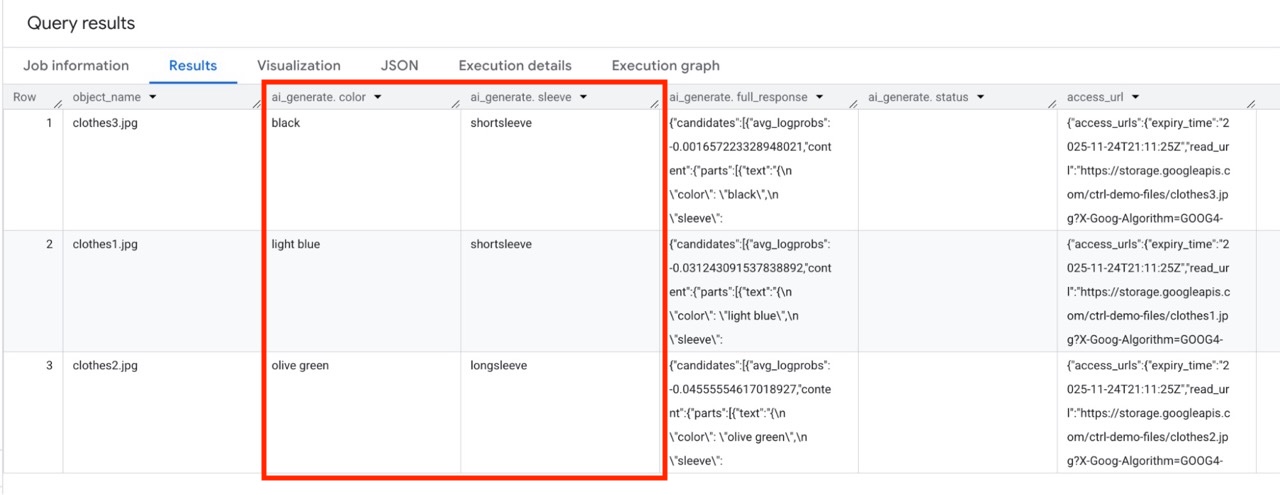
For the result we first display the object_name, and then the two prompt responses, color and sleeve.
Use Cases for AI.GENERATE() and Images
- Create text based on an image.
- Produce product descriptions.
- Detect objects or products in an image.
- Read text from images to use in forms or tagging.
- Classify images into categories.
AI.CLASSIFY()
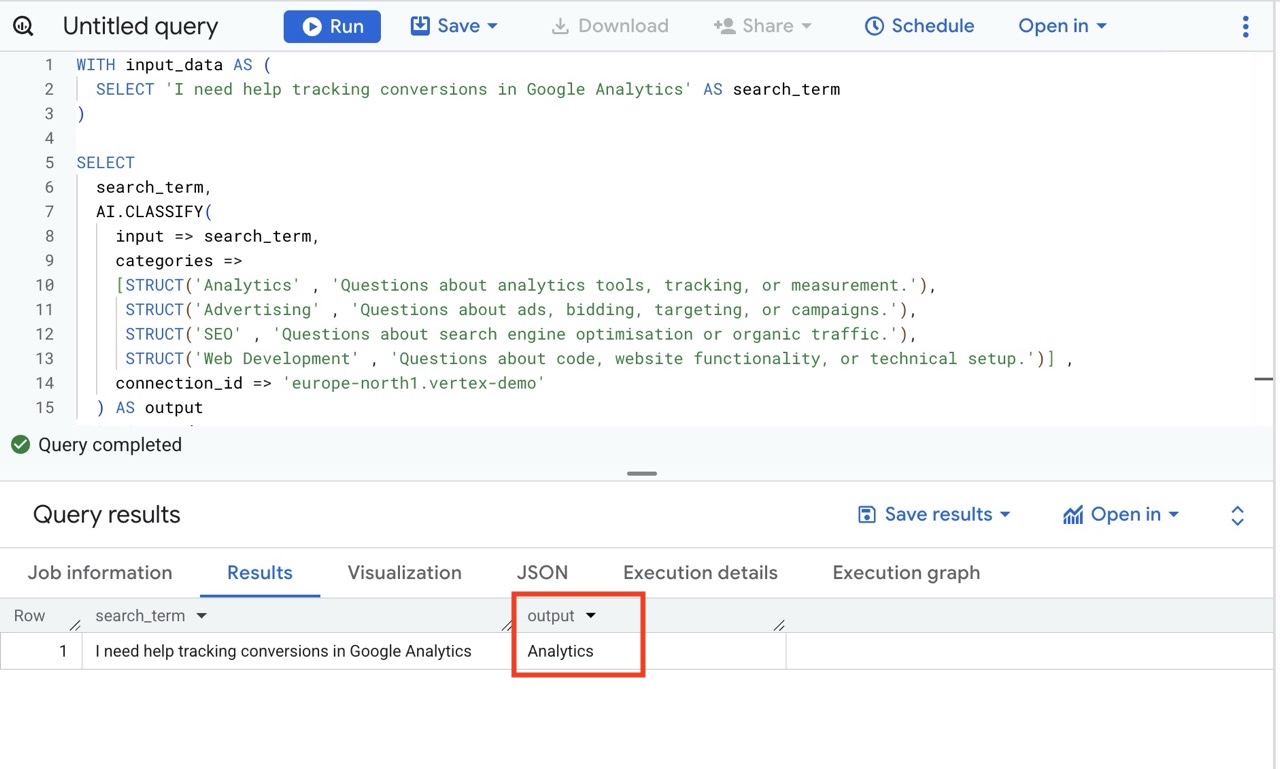
AI.CLASSIFY predicts a label for a text based on instructions you give. It is useful when you want to group or categorize qualitative data.
It is similar to AI.GENERATE but with this function you will specify and describe categories, and the LLM will attempt to categorize the phrases into one of the categories.
SQL Example of AI.CLASSIFY()
In this example we have a table with search terms, and we want to categorize them into one of four defined categories.
SELECT
search_term,
AI.CLASSIFY(
input => search_term,
categories =>
[STRUCT('Analytics' , 'Questions about analytics tools, tracking, or measurement.'),
STRUCT('Advertising' , 'Questions about ads, bidding, targeting, or campaigns.'),
STRUCT('SEO' , 'Questions about search engine optimisation or organic traffic.'),
STRUCT('Web Development' , 'Questions about code, website functionality, or technical setup.')] ,
connection_id => 'europe-north1.vertex-demo'
) AS output
FROM input_data;
Use Cases for AI.CLASSIFY()
- Sentiment analysis for customer feedback.
- Tagging support tickets.
- Categorizing search terms for on-site search or SEO
- Grouping survey answers by theme.
- Detecting intent in user messages.
AI.SIMILARITY()
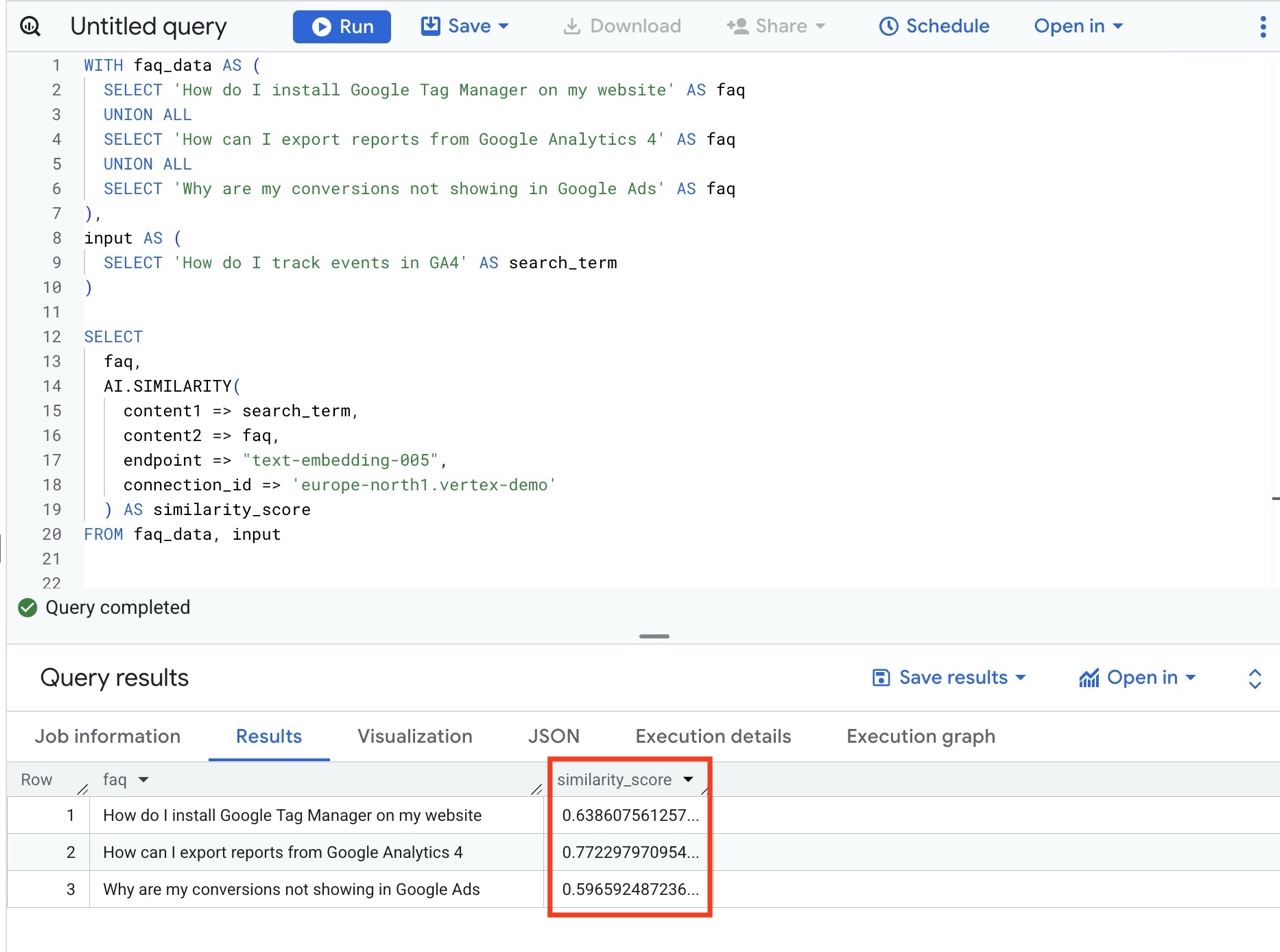
AI.SIMILARITY compares two pieces of text and returns a score. A higher score means the texts are more similar. This is good when you want to find duplicates or match content that talks about the same thing.
SQL Example of AI.SIMILARITY()
SELECT
faq,
AI.SIMILARITY(
content1 => search_term,
content2 => faq,
endpoint => "text-embedding-005",
connection_id => 'europe-north1.vertex-demo'
) AS similarity_score
FROM faq_data, input
Use Cases for AI.SIMILARITY()
- Finding similar questions in FAQ data.
- Matching search queries with product descriptions.
- Grouping text answers by similarity.
- Detecting duplicate content.
Billing and Cost for Generative AI and Vertex AI
The cost for Vertex AI in BigQuery has two parts.
You pay for the BigQuery´s SQL querys and you pay for the Vertex AI model you prompt. The final cost is the combination of data processing in BigQuery and model usage in Vertex AI.
The cost for Vertex AI is calculated based on the number of tokens that is used by the prompt. The current token cost for different models in Vertex AI.
Review Actual Token Count in full_response
Each prompt using an AI function will in addition to the main response, also return the field full_response, which contains a JSON object with details about the prompt.
One of the details is the number of tokens used, both for handling the incoming prompt and for generating the result. This information can help you understand how many tokens the call uses and therefore the total cost of your prompts.
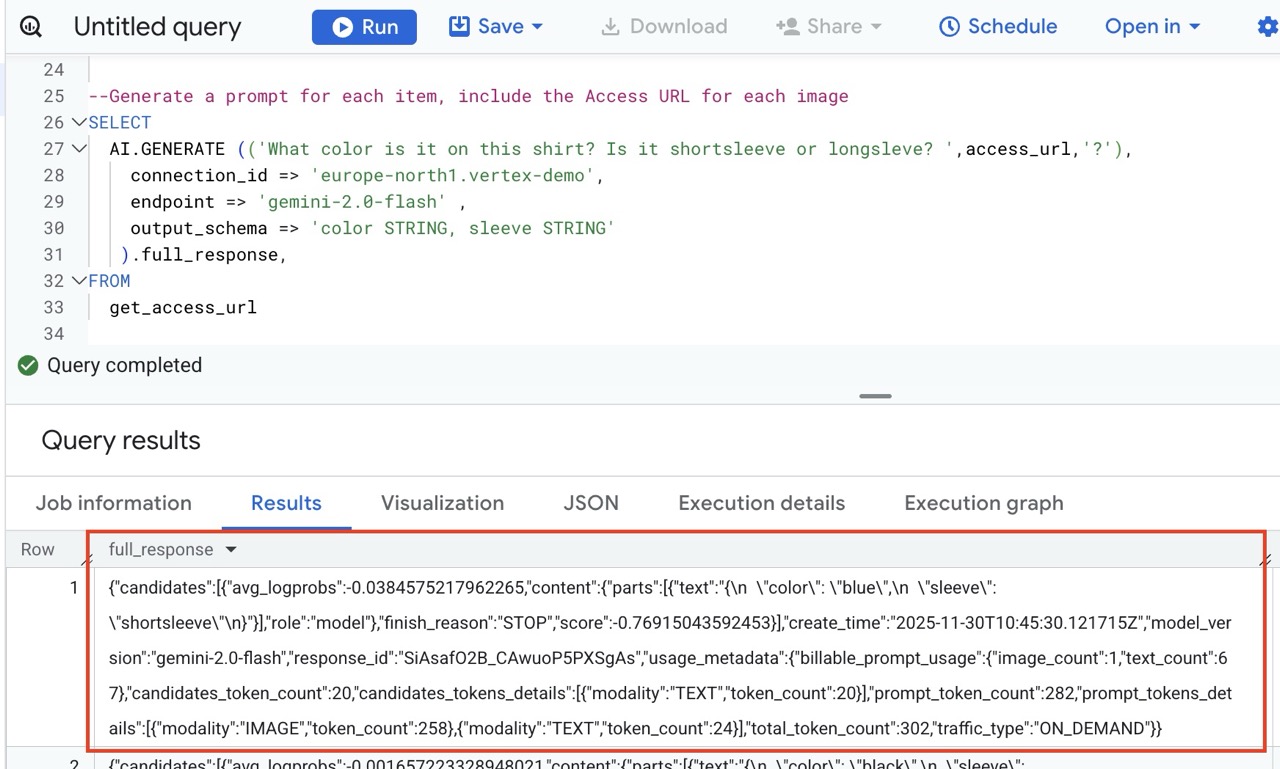
Example of Cost for Generative AI functions
A rough guideline from our tests was that about 10 000 prompts with AI.GENERATE resulted in a cost of around 2 USD. This is only an estimate. You should test with a smaller amount of data first and check your actual cost under GCP Billing.
Conclusion of Generative AI functions in BigQuery
BigQuery’s AI functions make it easy to work with qualitative data at scale. You only need SQL. With BigQuery’s AI functions you can summarize text and images, label it, and compare it. This removes a lot of manual work and lets analysts build smarter pipelines directly inside BigQuery.
At Ctrl Digital we work daily with BigQuery, AI and modern analytics. If you want help setting up these functions, building use cases or reviewing your current setup, reach out to [email protected].