

Optimize BigQuery Cost
Discover how to significantly reduce your BigQuery costs by mastering the nuances of different storage types and data architecture. We break down the technical details and provide real-world examples to help you optimize your setup for maximum efficiency.
BigQuery is more than just a buzzword; it’s rapidly becoming the backbone of modern data strategies. More and more companies are moving their operations to Google Cloud Platform to gain access to raw data and build robust Marketing Data Warehouses, blending website behavior with other business data and ad platforms to further their insights.
For analysts, this marks a significant shift. It used to be enough to master an analytics tool and a Tag management system. That is no longer the case. Today, the modern analyst needs to be comfortable working directly with data warehouses. But unlike the “free” interface of GA4 and GTM, BigQuery can cost money where you pay for what you use.
This cost landscape can be hard to navigate, but hopefully this article will make it all easier for you. We’ll walk through some best practices and how we can optimize your BigQuery usage and reduce cost risks.
Understand Where The Costs Come From
BigQuery is like an electricity bill, you pay what you use since it’s a pay-as-you-go service. Costs generally fall into two main buckets:
Storage of Data
This is the cost of keeping your data in BigQuery. It is split into Active storage (data in tables that have been modified in the last 90 days) and Long-term storage (data in tables that have not been modified for 90 days, which is half the price). You also have physical and logical storage which we will discuss more later.
Analysis of Data
Analysis and querying consists of two cost drivers:
Compute: This is often the “scary” part of BigQuery—paying for the queries you run. In BigQuery, you don’t just click a button to see data; you write instructions called SQL queries to ask the database specific questions to get specific results. Under the standard pricing model, you are billed based on the amount of data scanned to answer that question (currently ~$6.25 per terabyte). The cost depends entirely on how “heavy” your queries are.
Capacity pricing: You pay for virtual CPUs (per hour). This is used more by big companies that want an almost fixed price every month. Capacity pricing will not be covered in this article.
While there are “extras” like streaming ingestion, data egress, and BigQuery Machine Learning (ML), for most analysts, the battle is won or lost in how efficiently you query and store your data.
Change The Way You Query
Small changes in your SQL syntax can make a massive difference in the amount of data processed. Like we just mentioned, the cost comes from the amount of data scanned and processed when you run a query.
Here are four ways of reducing the amount of data scanned for every query.
Stop Using SELECT *
This is the golden rule, only select the specific columns you need. BigQuery is a columnar database, meaning it reads data column-by-column. If you select all columns, you pay to read all columns. You usually never need all of the columns. In the GA4 raw-data export you have access to more than a hundred columns and you usually never need all of them for an analysis.
SELECT
 *
FROM
 `demo_project.dataform_result.events`
 -- This query will process 421.43 GB
SELECT
 date, event_name, platform
FROM
 `demo_project.dataform_result.events`
 -- This query will process 14.58 GB
Only choosing the columns you need resulted in 97% less bytes processed and billed.
Use WHERE Clauses Wisely
Simply filtering data isn’t enough unless the table is optimized for it (see Partitioning below). If a table is partitioned and clustered a WHERE statement will reduce the amount of bytes scanned possibly by a lot.
SELECT
 date, event_name, platform
FROM
 `demo_project.dataform_result.events`
 -- This query will process 14.58 GB
SELECT
 date, event_name, platform
FROM
 `demo_project.dataform_result.events`
WHERE
  date = '2026-01-01'
 -- This query will process 11.34 MB
Adding a WHERE clause resulted in more than 99% less bytes processed and billed
Use TABLE SAMPLE SYSTEM
If you just need to preview data to understand the structure, use sampling commands instead of querying the full dataset. TABLE SAMPLE SYSTEM will show you a sample of the data based on a chosen percentage. It will always take a new sample every time you run the query. So it is not good for actual analysis but good for checking tables and some simple debugging.
SELECT
 *
FROM
 `demo_project.dataform_result.events`
 TABLESAMPLE SYSTEM (10 PERCENT)
Something That Doesn’t Affect The Cost
LIMIT Does NOT Save Money
Adding LIMIT 10 to your query might make the output smaller, but BigQuery still has to scan the full table to find those 10 rows. It will only affect the result you see but do not change the cost.
SELECT
 Date, event_name, platform
FROM
 `demo_project.dataform_result.events`
WHERE
 Date = '2026-01-01'
 -- This query will process 11.34 MB
SELECT
 Date, event_name, platform
FROM
 `demo_project.dataform_result.events`
WHERE
 Date = '2026-01-01'
LIMIT 1
 -- This query will still process 11.34 MB
No difference even though you LIMIT the result to show only 1 row
The Power of Partitioning and Clustering
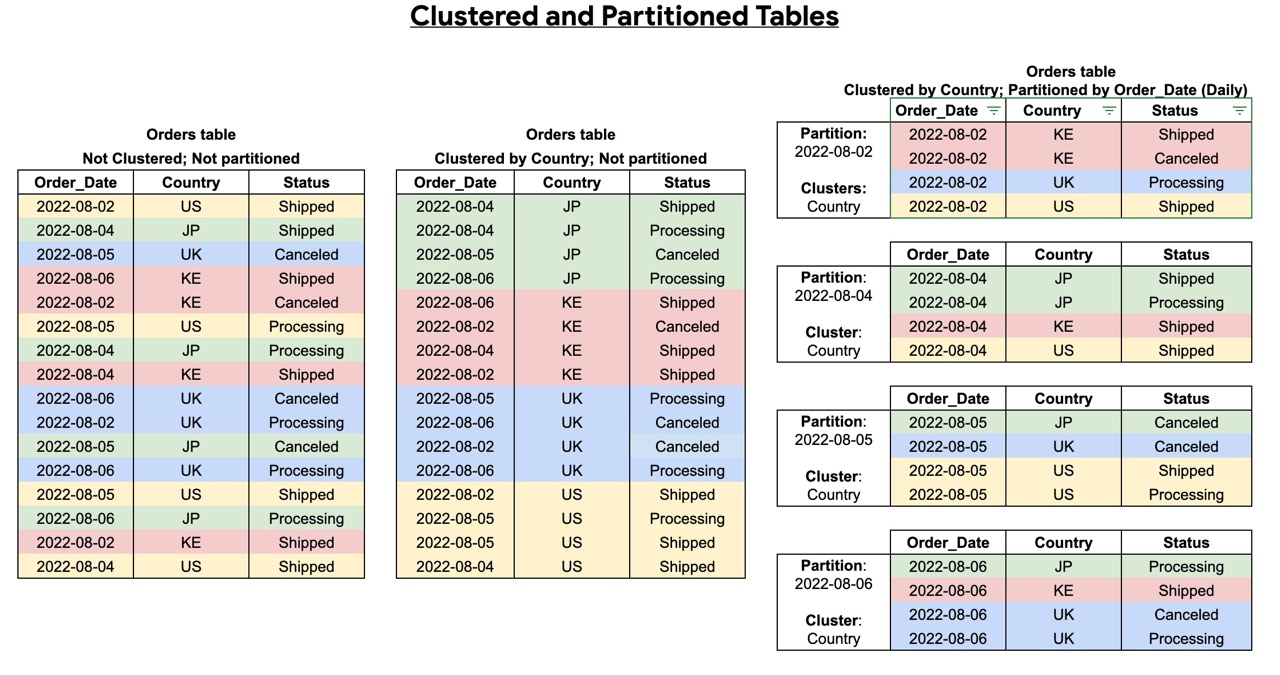
If you take one technical thing away from this article, let it be Partitioning and Clustering. It is not just important how you query our data, it also matters how the data is stored and prepared. If you query a partitioned, clustered and/or pre-processed table you can drastically reduce the amount of data processed.
Imagine a library where all the books are thrown into a pile. Finding a specific book takes forever. Now imagine they are sorted by date. That is partitioning.
Partitioning
This divides your table into segments, usually by date (e.g., Order_Date). When you run a query like WHERE Order_Date = ‘2022-08-04’, BigQuery only scans that single day’s partition and ignores the rest of the table. So if you have one year worth of data in the table, the amount of data scanned will be 1/365 instead of all the 365 days of data.
Clustering
This sorts the data within each partition (e.g., by Country). If you filter by both Date (partition) and Country (cluster), BigQuery can skip even more data blocks, saving query time and bytes scanned.
There are different requirements for partitioning and clustering columns. Partitioning can be done on time, ingestion time and integer range. In data analytics, tables are usually organized by date. This allows you to specify a date range in your WHERE statement so BigQuery only scans the data you actually need.
You can cluster data using many different column types, such as event name or country. For example, if you cluster by event name and only search for ‘purchase,’ BigQuery can quickly find those specific groups of events without scanning the entire table. To save the most time and money, you should use both partitioning and clustering together.
This ensures your queries only scan the data that matches your WHERE statement.
Optimize Your Storage Strategy
Storing data is usually the cheapest part of BigQuery, but it can also create huge costs if you don’t keep track of all the data that is stored and it can quickly become huge amounts of data.
Making sure you don’t store unnecessary data and optimizing the way you store the data can reduce your costs.
Don’t Store Unnecessary Data
Companies like to save data “just in case” it might be needed. Usually the value of data, if not acted on or used, is declining quite rapidly. This is an unnecessary cost you can avoid by only storing data you actually need.
Use Table Expiration (TTL)
To avoid forgetting to delete data, set a TTL on entire tables or on partitions, so if the data is older than X amount of days it will be deleted automatically.
Allow BigQuery to enable long term storage
Long term storage, which gets activated automatically after data has not been modified for 90 days, is one way of saving on storage costs. Long term storage is a 50% discount compared to active storage. So make sure you partition your tables on date if you can because if a partition is modified it will become active storage again and long term storage will break.
Logical Storage VS Physical storage
BigQuery offers two distinct storage tiers that significantly impact your costs, though the nuances between them are often misunderstood. We’ll break down these differences and provide clear examples of when to leverage each type.
Physical storage costs roughly twice as much as logical storage. However, physical storage benefits from strong compression, which often reduces the actual number of bytes stored and can make tables significantly smaller. The higher cost also covers features like data availability for time travel, allowing you to query or restore deleted data.
Logical storage, on the other hand, is cheaper per byte and you don’t have to pay for time-travel and fail safe data, you only pay for data while it exists. However it does not apply the same level of compression. As a result, for tables that do not compress well, logical storage can sometimes be the more cost-effective option.
BigQuery retains deleted data in two stages: first in Time Travel (0–7 days) and then in Fail-safe (7–14 days). While this safety net is useful, it means that even ‘deleted’ data consumes physical storage for up to two weeks.
Here are some examples of when use which kind of storage:
When to switch to Physical Storage
The Data: You have 10 TB of structured server logs (mostly text and repeating status codes). Logs compress incredibly well, usually 10:1.
Calculation:
Logical: 10,000 GB X $0.02 = $200
Physical: 1,000 GB (compressed) X $0.04 = $40
Result: You save $160 a month by switching to Physical Storage.
When to stick with Logical Storage
The Data: You have a 1 TB staging table that you delete and reload every single day. Even though the table is only 1 TB, BigQuery keeps the “deleted” data for 7 days of Time Travel + 7 days of Fail-safe.
Calculation:
Logical: 1,000 GB X $0.02 = $20 (You don’t pay for the deleted versions).
Physical: 1,000 GB (current) + 13,000 GB (the 13 previous versions still in retention) = 14,000 GB. 14,000 GB X $0.04 = $560
Result: You would pay 28x more on Physical because of high data churn!
This was part one of BigQuery cost savings, in part two we will discuss more ways to save costs and monitor what the costs are going too.
Summary Checklist: How to Query with Confidence
Working with BigQuery doesn’t have to be scary. It just requires a shift in mindset and a few good habits. Before you start your next analysis, go through this checklist.
Remember To Think Before You Query
Ask yourself what data you actually need. Avoid SELECT * and choose only the specific columns required for your analysis .
Remember To Filter Wisely With WHERE
Use WHERE clauses on partitioned columns (like date) to drastically reduce the amount of data scanned.
Remember To Use Partitioning and Clustering
Ensure your large tables are partitioned and clustered (e.g., by day) so you don’t scan the entire history of data for a single day’s insight.
Remember To Check Your Storage Settings
Switch to Physical Storage for data that compresses well (like logs), but stick to Logical Storage for tables that change frequently to avoid paying for deleted history .
Understanding these pricing models gives you total control over your storage and prevents spending from spiraling. Implementing smarter querying habits and sharing these best practices with your team is the fastest way to drive down your BigQuery costs.
Need Help with BigQuery and Data Warehousing?
At Ctrl Digital, we specialize in BigQuery, data warehouse architecture, and performance optimization. Whether you need help designing a scalable setup, optimizing storage costs, or auditing your current environment, reach out to us at [email protected].