

Conversational Analytics in BigQuery
Conversational analytics in BigQuery lets users ask questions about their data in natural language instead of writing SQL. AI-powered data agents translate the questions into queries, analyze the data, and return answers with text, tables, or charts.
Conversational Analytics means asking questions about your data in plain language and getting answers back directly. Instead of writing SQL or building a dashboard, you type a question like:
How many new customers did we get last month?
What was revenue by channel in Q4?
Behind the scenes, AI translates your question into SQL, runs it, and returns the result.
This lower the barrier to data. More people in the business can explore insights without knowing SQL. Analysts can spend less time answering repetitive questions and more time building solid data models.
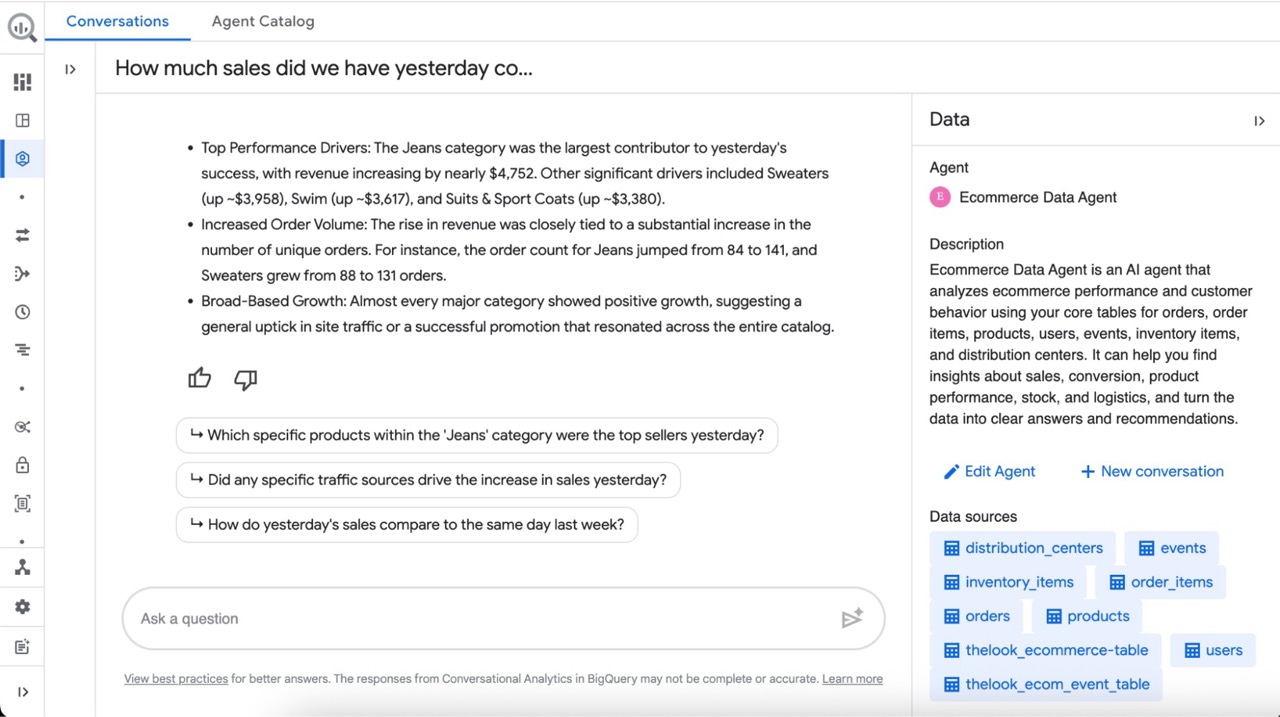
What is Data Agents in BigQuery
Now, BigQuery has launched Data Agents. It is a platform for building agents, giving them access to data resources, and setting context with instructions and directives. After that, you can share them with your organization so people can use them to ask questions and explore the data.
The Data Agent has a similar role to the one dashboards have had, and it will be a complement going forward for data democratization.
Let’s take a look at how to create our first Data Agent in BigQuery and share it with our organization.
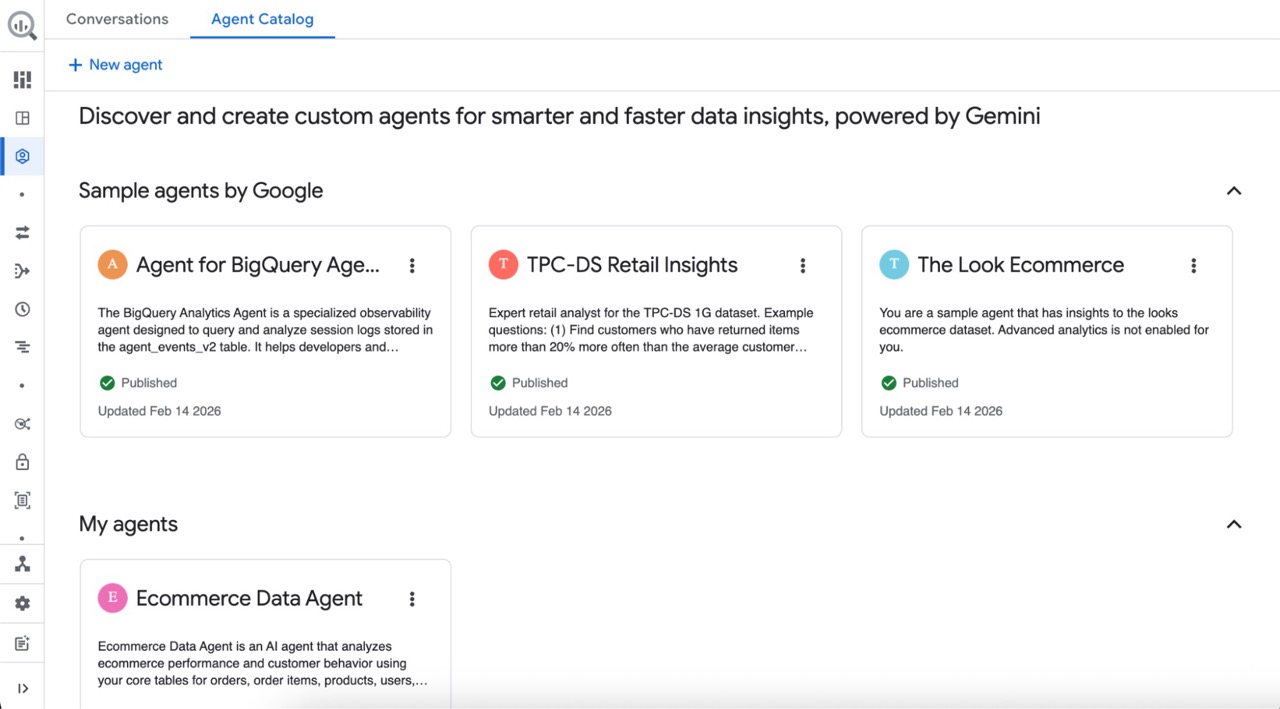
Create Our First Data Agent in BigQuery
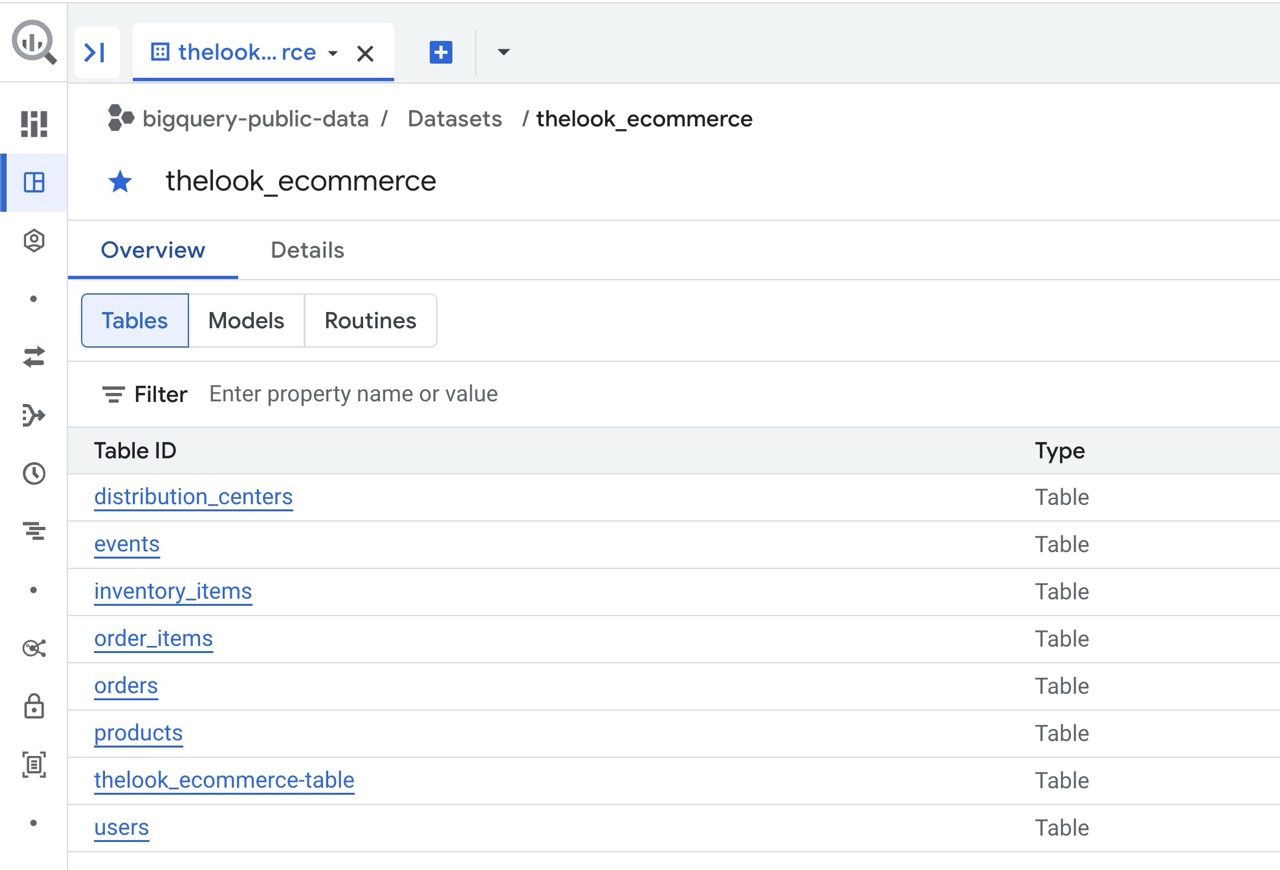
In this walkthrough, we will use a public ecommerce dataset created by Google, theLook eCommerce, for the demo. You can of course use your own datasets and tables for your Data Agent.
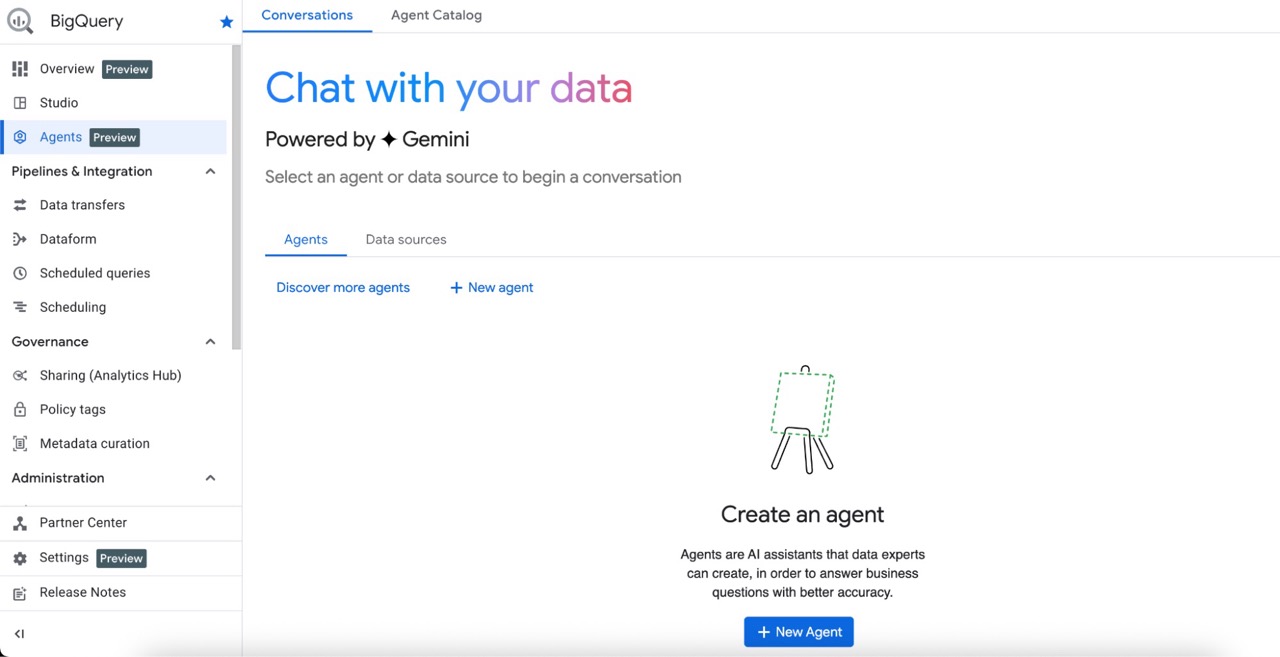
Create a New Data Agent
You will find Agents at the top of the left menu in BigQuery.
After a few approval steps the first time, you can create your first Agent, click New Agent.
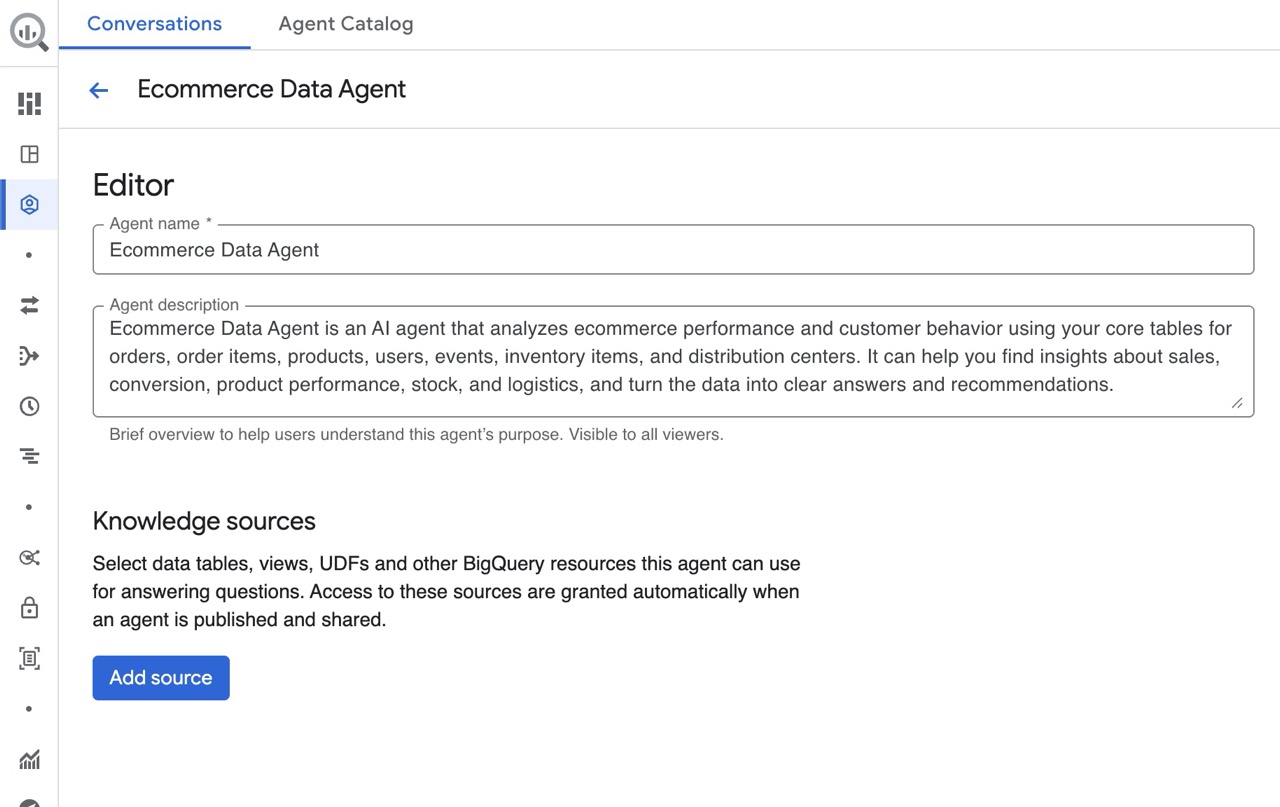
Name Your Data Agent
Start by giving it a clear name. For example, “Ecommerce Performance Agent” or “Marketing Analytics Agent”. This helps when you later share it with others.
You can also add a description that will be visible to others.
Add Knowledge Sources
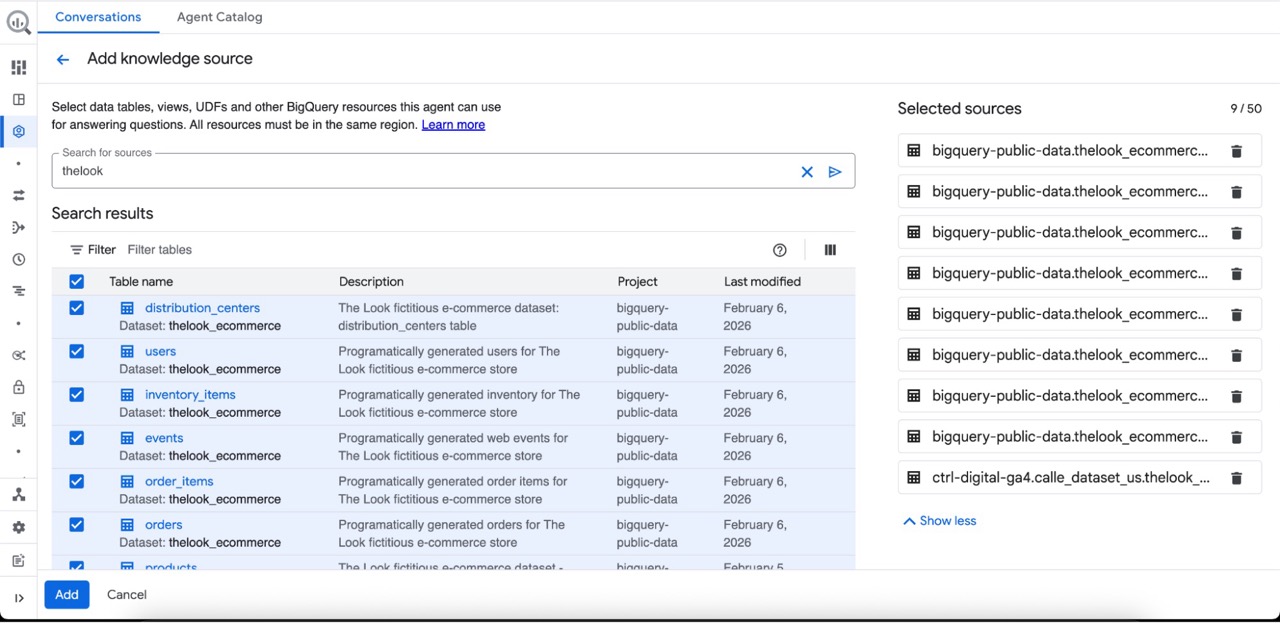
Next, you select which tables and resources in BigQuery that the Data Agent can access. These are called Knowledge Sources.
The Agent only sees what you allow it to see. It can only use the tables, views, and UDFs that you assign.
Add Instructions to the Data Agent
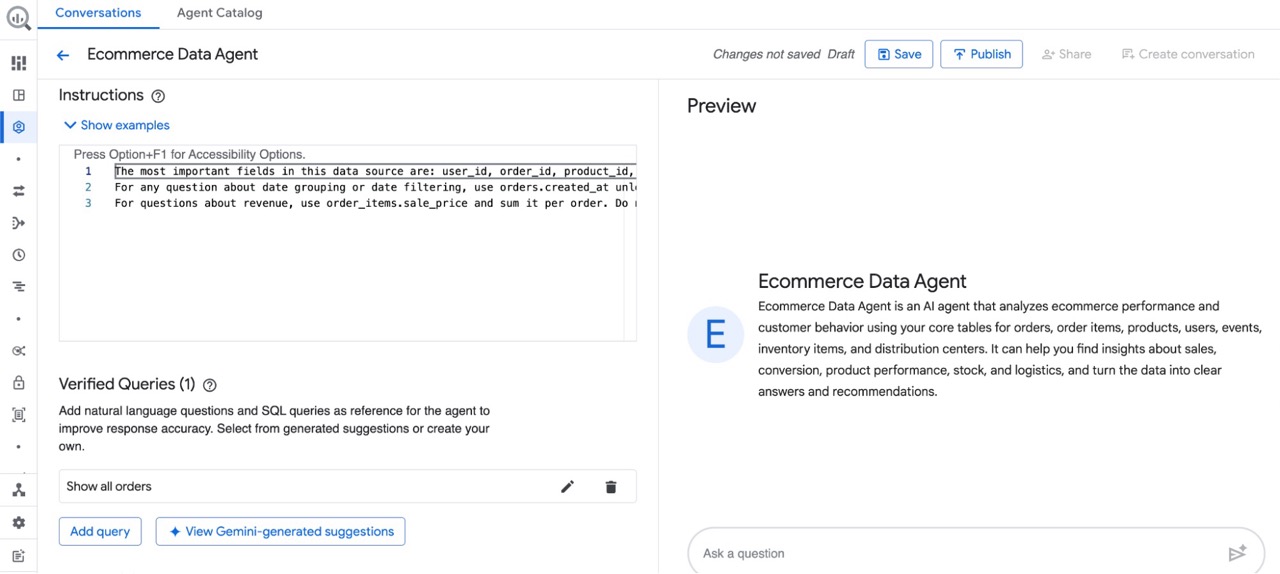
You can add free text instructions that guide and give context to how the Agent should think.
Example: For any question about date grouping or date filtering, use Order Date unless another field is specified.
You can explain how your business works and add context. Which fields are default. How revenue is defined. What counts as an active customer.
Add Verified Queries
You can define prepared SQL queries with descriptions, these are called Verified Queries.
For example:
To calculate Customer Lifetime Value, use this Verified Query:
SELECT x, y FROM …
This is a strong feature. You control complex logic and make sure important metrics are calculated correctly every time.
Instead of hoping the Agent writes correct SQL for Customer Lifetime Value, you give it the approved logic.
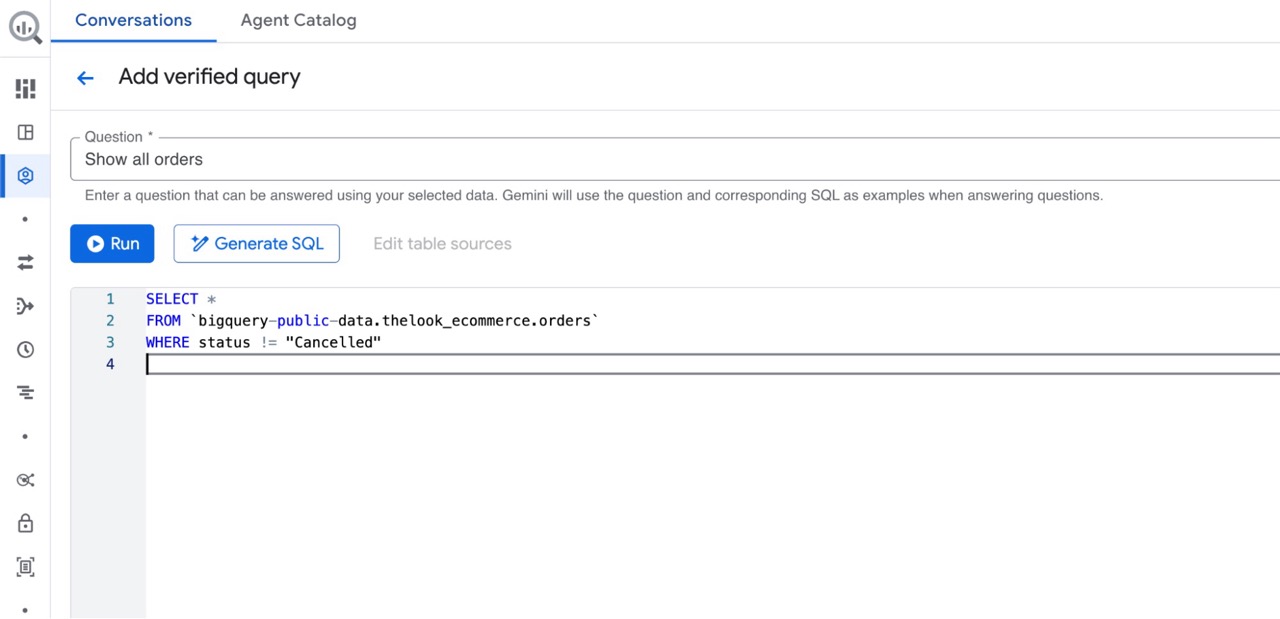
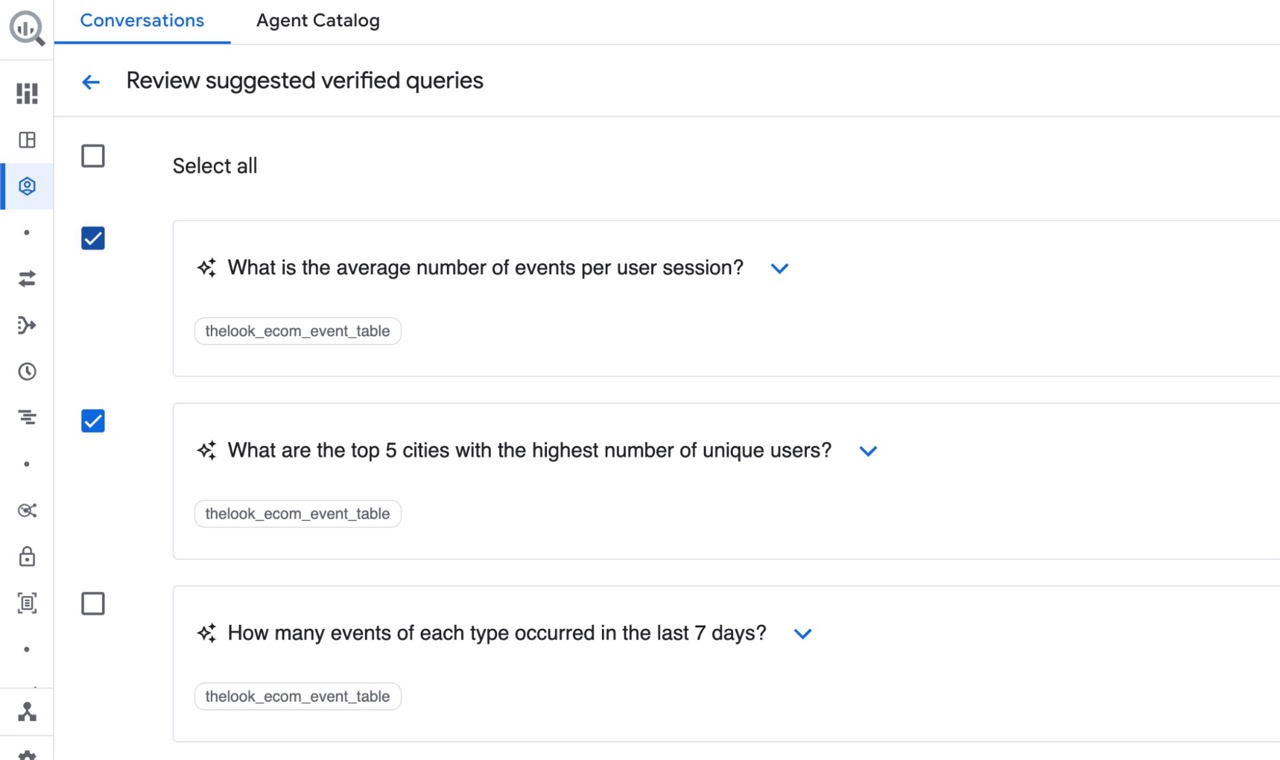
It also suggests Verified Queries after scanning your added knowledge sources. Feel free to add them, but review them carefully.
Add a Glossary and Terms
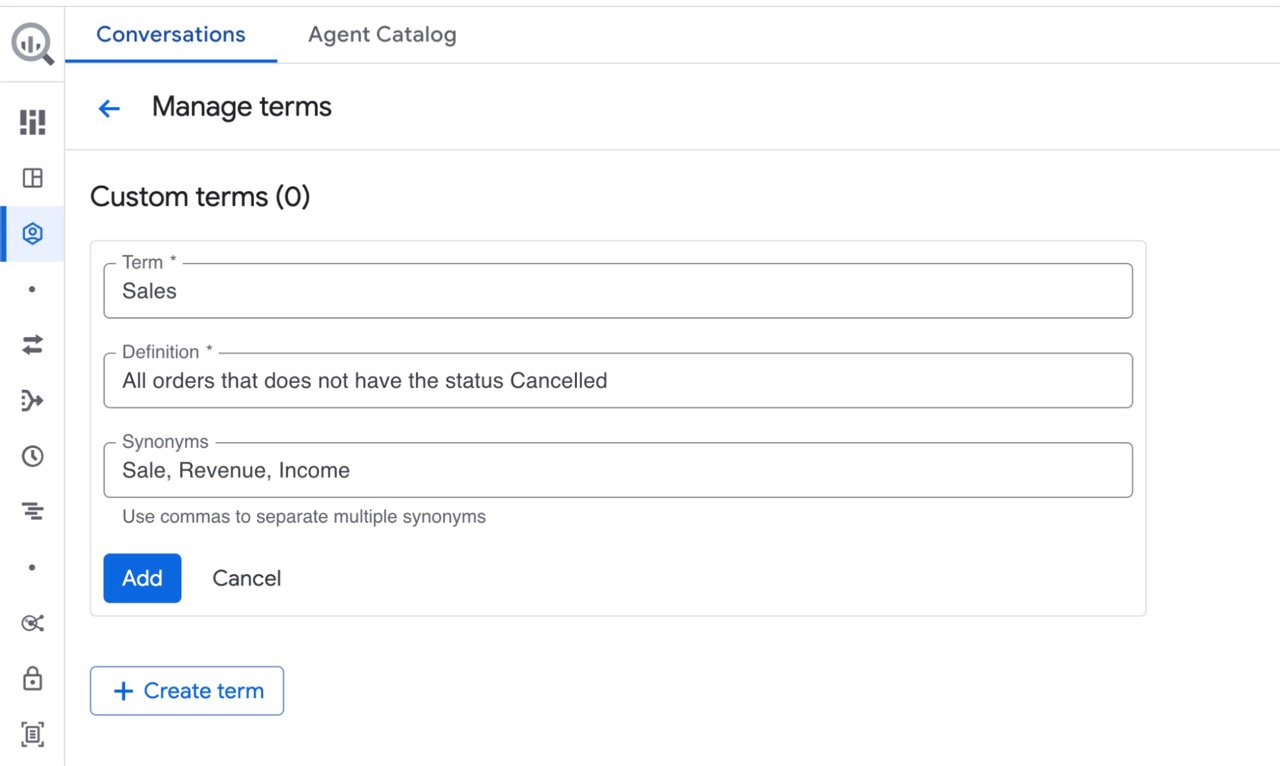
There is also a Glossary where you define terms and their meanings.
For example:
Net Revenue: Revenue excluding VAT and refunds.
Active Customer: A customer with at least one purchase in the last 12 months.
This reduces misunderstandings and makes answers more consistent. Use this to add your organization’s terms and language.
Set Labels and Billing Limitations
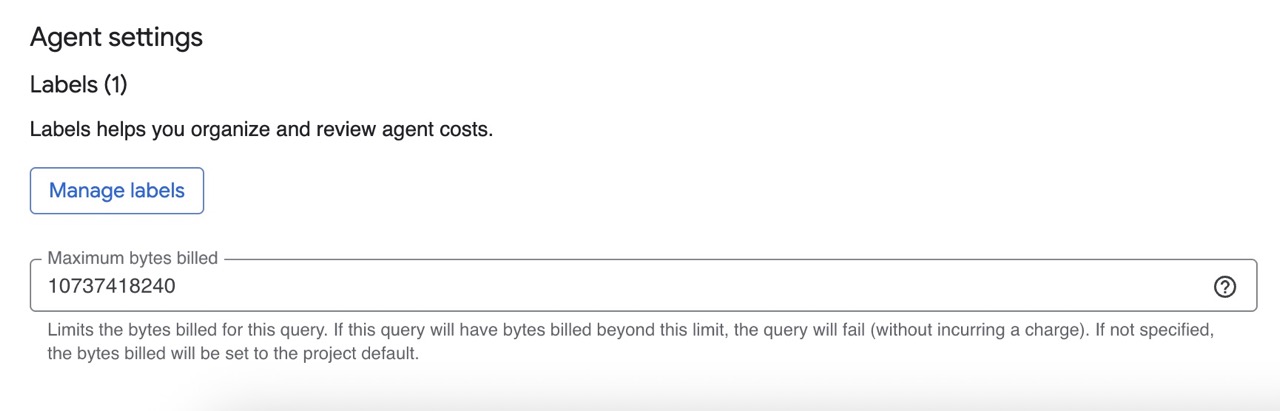
Since the Data Agent will generate and run SQL queries, it will incur BigQuery costs based on the amount of data it scans. We should therefore assign labels to review costs and set a maximum bytes per query limit. This makes it easier to control costs over time.
It is also important to only give the Data Agent access to curated and optimized tables, the same rule we apply for dashboards. This helps keep your BigQuery billing under control.
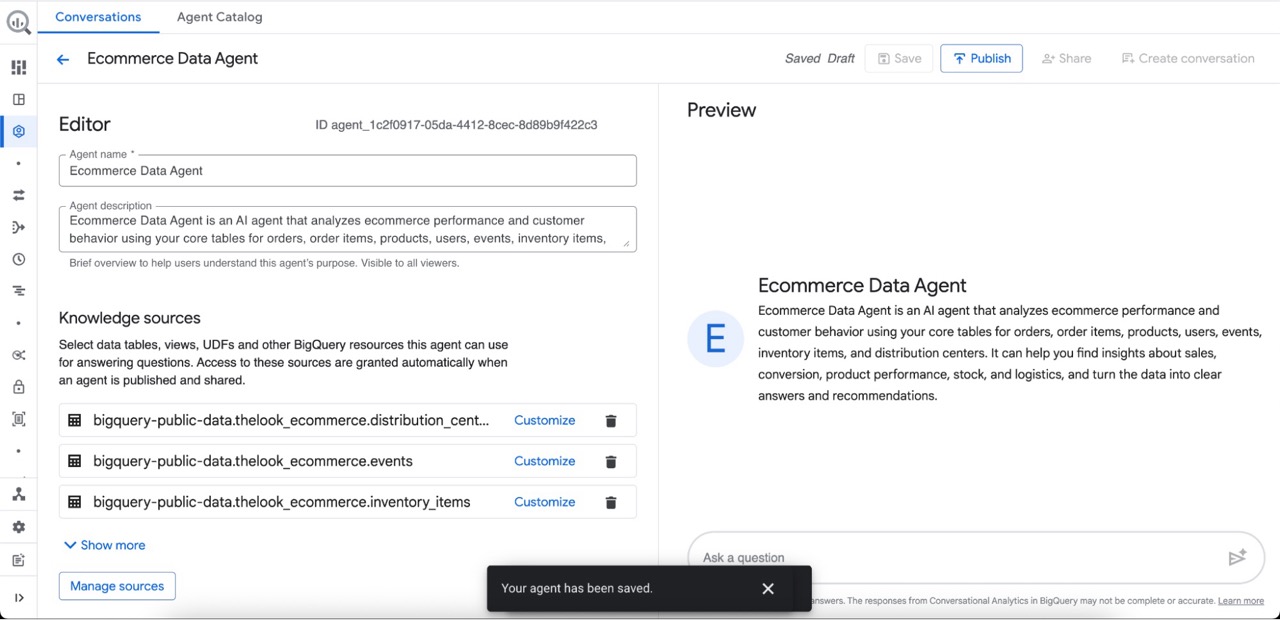
We are done, click Save and Publish to make the Data Agent available.
Share Across Your Organization
Click on Share to open up the Share dialog.
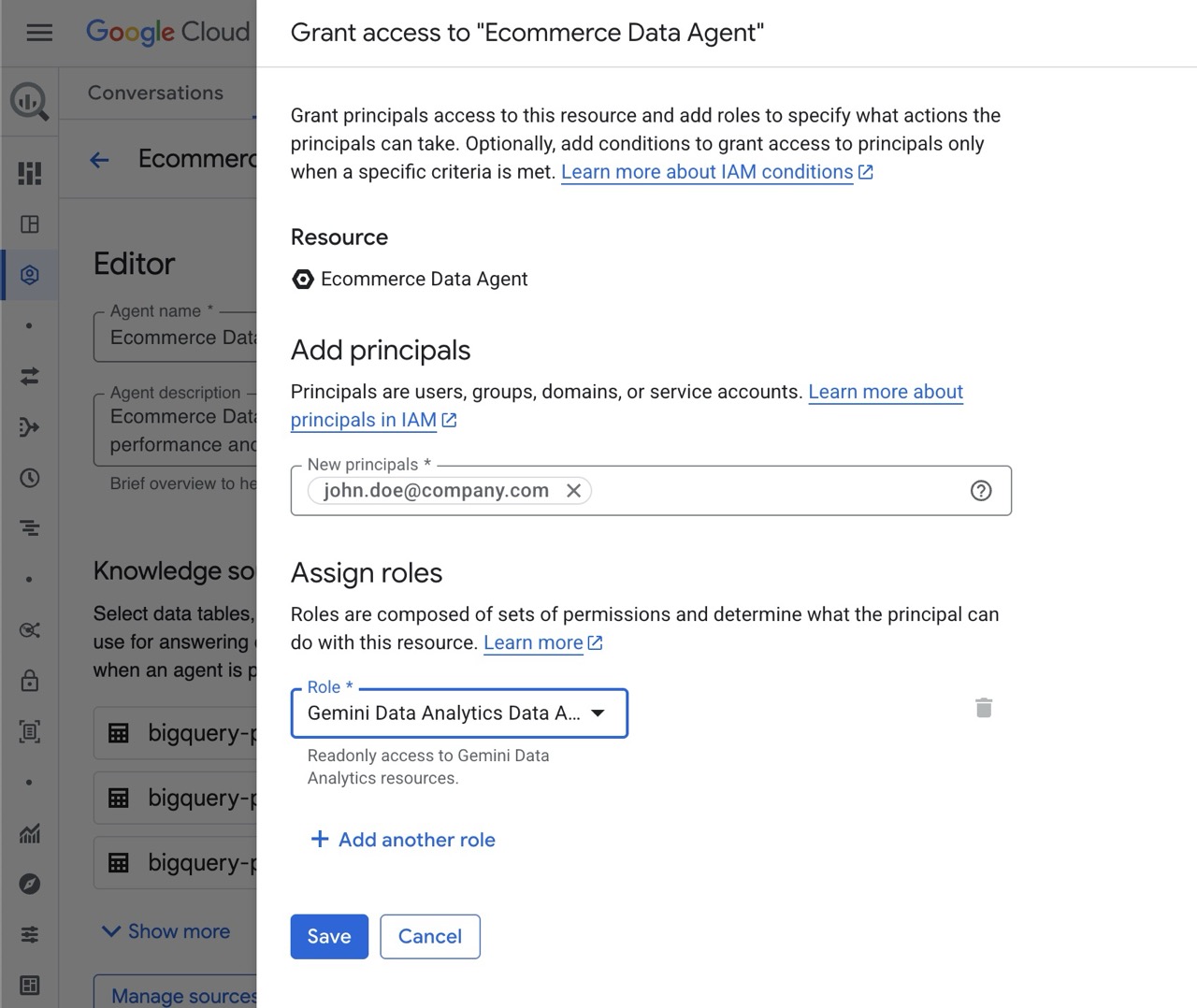
Click Add principal to give a new user access to the Agent.
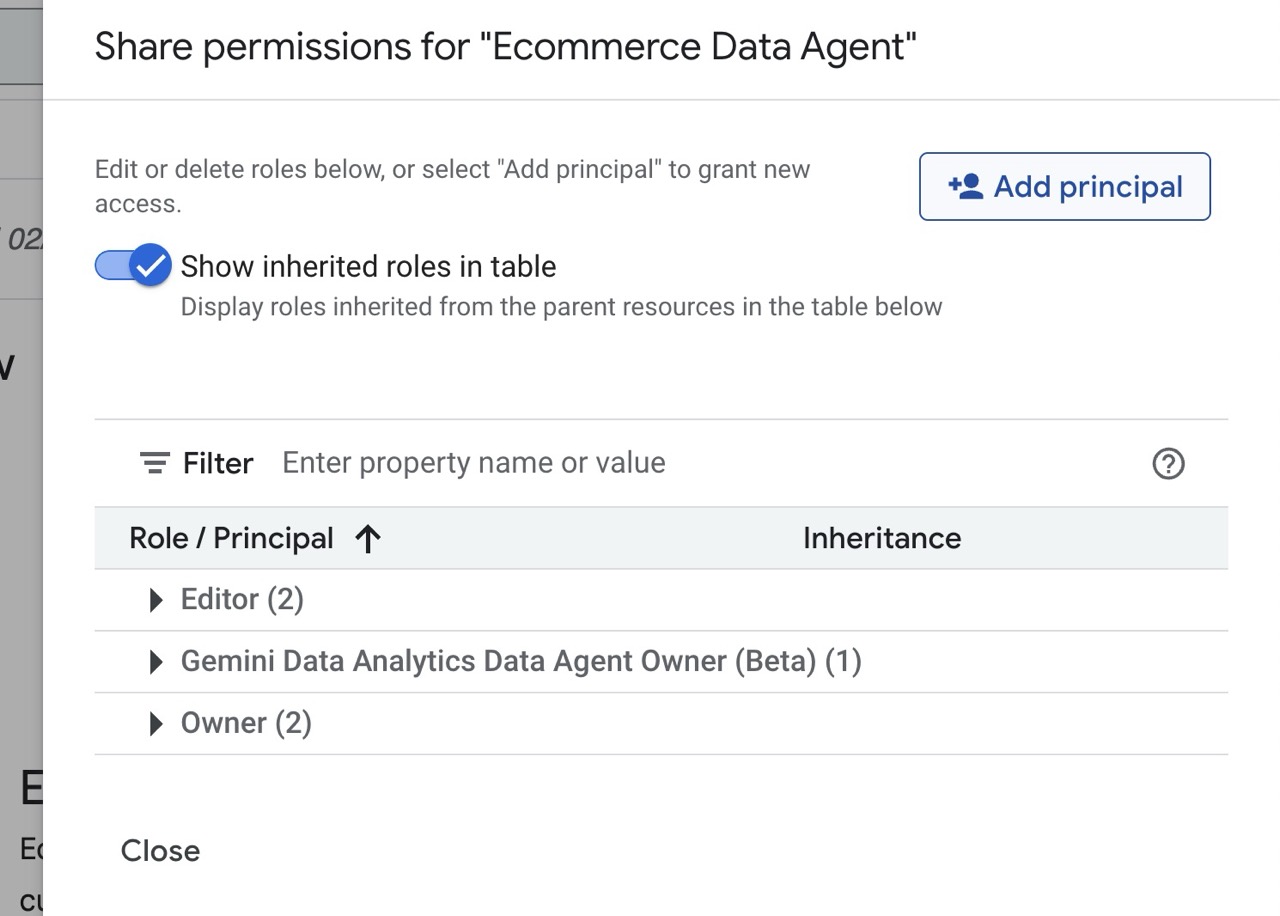
There are three primary roles you can use to share your Data Agent with others.
Gemini Data Analytics Data Agent User: grants permission to chat with the data agent.
Gemini Data Analytics Data Agent Editor: grants permission to edit the data agent.
Gemini Data Analytics Data Agent Viewer: grants permission to view the data agent.
Instead of everyone building their own AI agents, your company can now create a curated library of approved Agents. Structured, controlled and aligned with business logic.
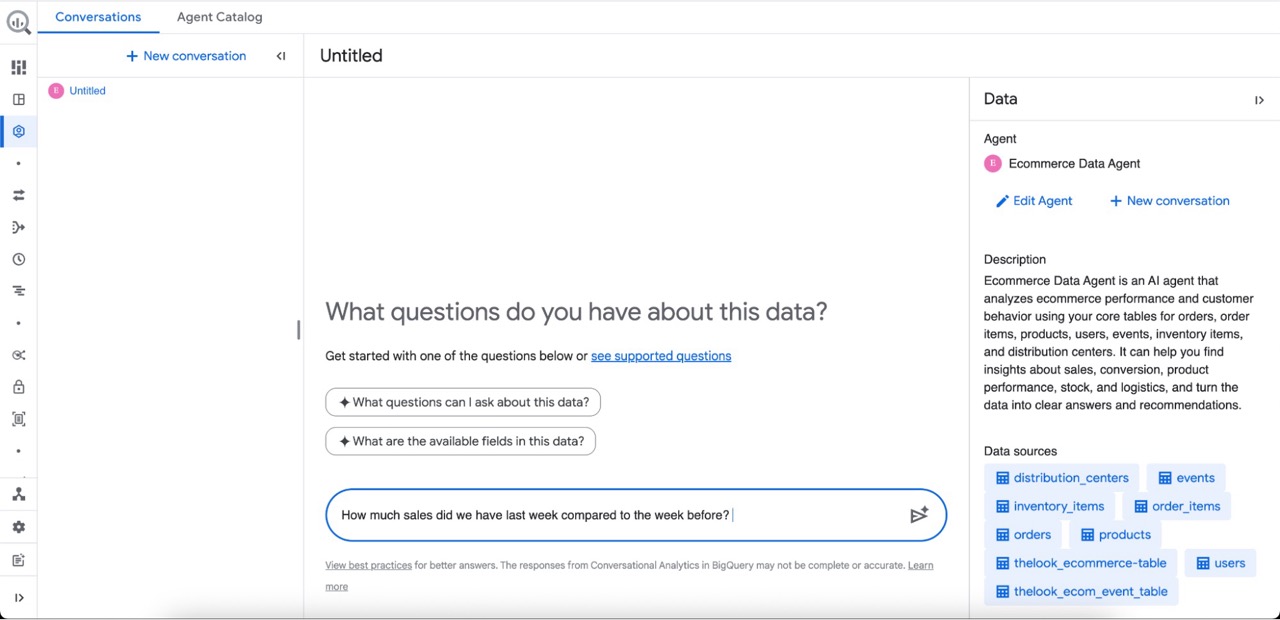
Chat With Your New Data Agent
We are done!
You and others can now use the Data Agent to ask questions, compare and analyze data, and generate SQL queries. This is a great addition to your dashboards for slicing and exploring your business data to uncover new insights.
Summary and Final Thoughts
A Data Agent does not replace your existing dashboards. It is an addition to your BI stack for data visualization and data storytelling. It lowers the barrier for quick ad hoc analysis, whether you are already comfortable with SQL or not.
But there is one important requirement, this only works well if you have a prepared data layer.
Do not connect an Agent directly to raw data such as a GA4 batch export. It will be expensive and confusing. The Agent will not understand the context, results will be messy and costs will increase.
Instead, build a semantic layer and use structured tables, clear naming, documented metrics, and clean transformations.
Then place the Data Agent on top of that, so everything feeds from the same structured foundation.
Want To Explore Data Agents and Conversational Analytics?
At Ctrl Digital we work daily with BigQuery, AI Agents and modern analytics. If you want help setting up these functions, building use cases or reviewing your current setup, reach out to [email protected].